1. Windows Batch Scripting for CAE Solver A
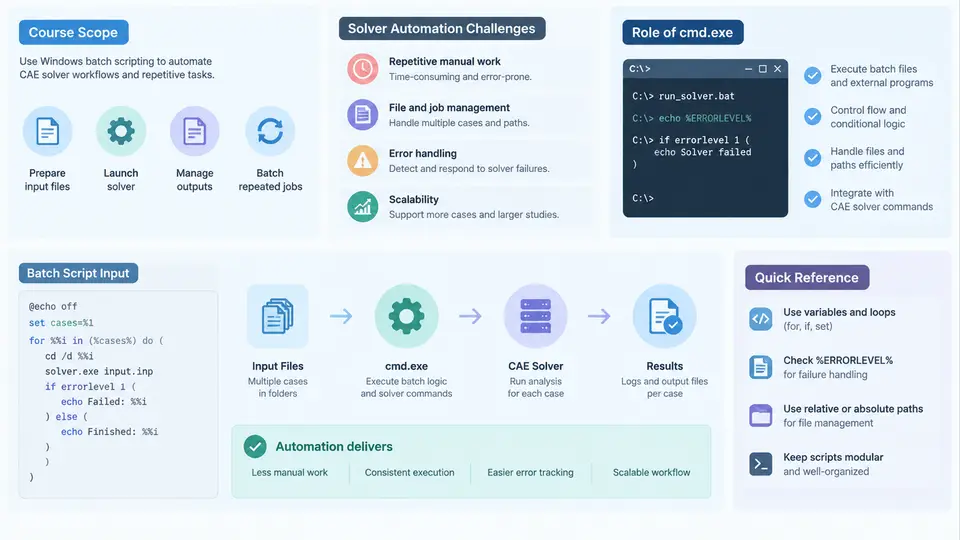
Computer-aided engineering (CAE) workflows rarely consist of a single solver invocation. A typical structural analysis job involves geometry cleanup, meshing, material and boundary-condition assembly, one or more solver runs, post-processing, and report generation. In production environments these steps are repeated hundreds or thousands of times across design variants, load cases, or optimization iterations. Automating that repetition is the central problem this course addresses, and on Windows the most universally available automation substrate is still the batch script executed by cmd.exe.
This chapter establishes the scope of the course, examines why solver automation on Windows is genuinely difficult, and explains what cmd.exe can and cannot do inside an engineering workflow. Later chapters build concrete scripting skills on this foundation.
What This Course Covers
The course targets engineers and analysts who already understand their solver (for example ANSYS Mechanical APDL, Abaqus/Standard, Nastran, or OpenFOAM-style solvers ported to Windows) but who need to drive it reliably from scripts. The scope is deliberately narrow and practical:
- Writing batch scripts that launch solvers, pass input decks, and capture exit codes.
- Managing file and directory structures for multi-case runs, including staging inputs and archiving results.
- Parsing solver output and log files to detect convergence, divergence, or fatal errors.
- Looping over parameter sets, load cases, or design points, and controlling parallelism.
- Integrating batch scripts with other tools such as Python, PowerShell, and job schedulers.
- Making scripts robust: error handling, logging, retry logic, and environment isolation.
The course does not attempt to replace a solver's own scripting language (APDL, Python APIs, or journal files). Instead it treats batch scripting as the orchestration layer that sits above those interfaces.
Why Solver Automation on Windows Is Hard
Automating a CAE solver is not the same as automating a build or a file copy. Several characteristics make it harder:
- Long-running, stateful processes. A nonlinear implicit solve may run for hours and produce intermediate files that must not be deleted prematurely. A script that assumes quick completion will corrupt results.
- Non-zero exit codes are ambiguous. Many solvers return
0even when the analysis diverged, or return a non-zero code for a warning that is acceptable. Exit codes alone are insufficient; log inspection is mandatory. - Licensing and environment sensitivity. License servers,
PATHentries, and environment variables such asANSYSLMD_LICENSE_FILEorLM_LICENSE_FILEmust be correct before launch. A missing variable produces a failure that looks like a solver bug. - Path and whitespace fragility. Windows paths contain spaces (
C:\Program Files\...) and backslashes. Unquoted variables in batch scripts silently break. - Resource contention. Running four solver instances on a four-core workstation oversubscribes memory and can cause swapping that invalidates timing or convergence behavior.
These are not hypothetical. A script that works on a developer's machine frequently fails on a compute node because of a different working directory, a missing mapped drive, or a license variable set only in the interactive shell.
The Role of cmd.exe in Engineering Workflows
cmd.exe is the Windows command interpreter. It reads a .bat or .cmd file line by line, expands variables, and launches child processes. Its strengths in a CAE context are availability and transparency: it exists on every supported Windows version, requires no installation, and its behavior is inspectable. Its weaknesses are a limited expression language, awkward string handling, and error semantics that differ from Unix shells.
Understanding three cmd.exe behaviors is essential before writing any solver script:
- Variable expansion timing. By default,
%VAR%is expanded when a line is parsed, not when it executes. Inside aforloop or anifblock, this causes stale values. Delayed expansion withsetlocal enabledelayedexpansionand!VAR!is the standard remedy. - Exit code propagation.
%ERRORLEVEL%holds the exit code of the most recent command. It must be checked immediately, before any other command overwrites it. - Quoting rules. Paths with spaces must be quoted, and quoting interacts with
forandcallin non-obvious ways.
The following minimal example illustrates a correct launch-and-check pattern. It is a teaching example, not a measured production result:
@echo off
setlocal enabledelayedexpansion

set "SOLVER=C:\Program Files\ANSYS Inc\v241\ansys\bin\winx64\ANSYS241.exe"
set "JOB=beam_static"
set "WORKDIR=%~dp0runs\%JOB%"

if not exist "%WORKDIR%" mkdir "%WORKDIR%"
pushd "%WORKDIR%"

"%SOLVER%" -b -i "..\..\input\%JOB%.dat" -o "%JOB%.out"
set "RC=!ERRORLEVEL!"

echo [%DATE% %TIME%] solver exit code = !RC! >> run.log

if not "!RC!"=="0" (
    echo Solver returned non-zero exit code !RC!. Inspect %JOB%.out >> run.log
    popd
    exit /b !RC!
)

findstr /C:"SOLUTION IS CONVERGED" "%JOB%.out" >nul
if errorlevel 1 (
    echo Convergence marker not found. Treating run as failed. >> run.log
    popd
    exit /b 2
)

popd
exit /b 0
Three details matter here. First, pushd and popd isolate the working directory so the script can be launched from anywhere. Second, the exit code is captured into RC immediately. Third, the script does not trust the exit code alone; it searches the solver output for a convergence marker. That combination — process status plus log evidence — is the minimum reliable success criterion for most solvers.
Where Batch Scripting Fits — and Where It Does Not
Batch scripting is the right tool for orchestration: sequencing steps, managing files, looping over cases, and invoking other programs. It is the wrong tool for numerical data manipulation, complex string parsing, or anything requiring data structures. A practical division of labor is:
| Task | Recommended tool | Reason |
|---|---|---|
| Launch solver, capture exit code | cmd.exe batch | Native process control, no dependencies |
| Loop over 200 load cases | cmd.exe batch | Simple iteration, file staging |
| Parse result tables, compute margins | Python | String and numeric handling |
| Manage HPC job submission | PowerShell or scheduler CLI | Better error objects, REST/CLI integration |
| Extract peak stress from .rst/.odb | Solver API (Python) | Binary result access |
The most maintainable production pattern is a thin batch wrapper that sets up the environment and calls a Python driver, which in turn calls the solver. The batch layer handles Windows-specific concerns; Python handles logic.
Visualizing the Automation Stack
The diagram below shows how a batch orchestration layer sits between the engineer's intent and the solver, and where the common failure points occur.
Key Takeaways for This Chapter
- Solver automation is orchestration, not numerical computation. Batch scripting handles the orchestration; the solver handles the physics.
cmd.exeis chosen for availability and transparency, not elegance. Its expansion timing, exit-code semantics, and quoting rules must be understood explicitly.- Reliable automation requires two independent success signals: the process exit code and a solver-specific log marker.
- Environment setup —
PATH, license variables, working directory — is the most common source of "works on my machine" failures. - Batch scripts should stay thin. Delegate parsing and data manipulation to Python or PowerShell, and keep the batch layer focused on process control and file management.
With this foundation, the next chapters move into concrete syntax: variables, control flow, file operations, and the specific patterns used to drive real solvers from the command line.