3. Extracting field data from mesh-based re
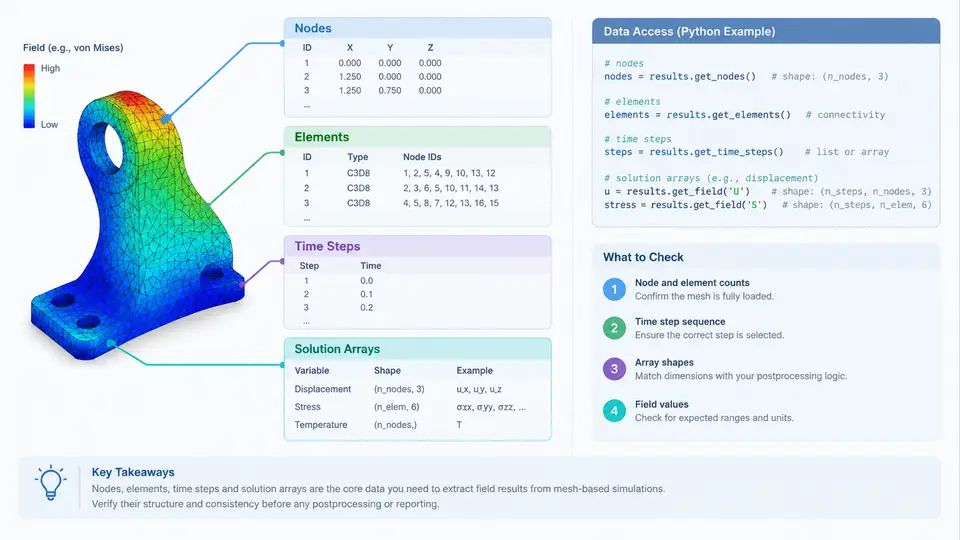
Once a CAE solver has finished writing its result files, the postprocessing task shifts from simulation to data engineering. Before any contour plot, probe, or report table can be produced, the raw solution must be read back into memory in a form that preserves the relationship between geometry (nodes and elements), time (load steps and increments), and physics (the solution arrays themselves). This chapter focuses on that extraction layer: how mesh-based results are structured on disk, how to enumerate their components programmatically, and how to pull specific field values out of them reliably.
The Three Axes of a Result Database
Almost every mesh-based result format — Abaqus .odb, ANSYS .rst, Nastran .op2, CGNS, or VTK — organizes data along three independent axes:
- Topology axis: the mesh itself, consisting of node coordinates and element connectivity. This is static unless the analysis includes remeshing or adaptive refinement.
- Temporal axis: a sequence of frames, each corresponding to a time step, load increment, or modal frequency. Frames are ordered and indexed.
- Field axis: the solution arrays attached to each frame, such as displacement, stress, temperature, or reaction force. Each array is associated with either nodes or elements.
A field is therefore addressed by a triple: (frame, field name, location). Understanding this addressing scheme is the key to writing correct extraction code, because a mismatch between the requested location and the actual storage location is the most common source of silent errors.
Node-Based vs. Element-Based Fields
Displacement, velocity, acceleration, temperature, and pore pressure are typically stored at nodes. Stress, strain, section forces, and energy densities are typically stored at element integration points, then extrapolated or averaged to nodes for visualization. When you extract data programmatically, you must know which convention the solver used.
In Abaqus, for example, U (displacement) is a nodal field, while S (stress) is stored at integration points and can be requested at nodes via fieldOutputs['S'].getSubset(position=NODAL). In ANSYS Mechanical APDL, NSOL retrieves nodal results and ESOL retrieves element results. Mixing these up produces arrays of the wrong length or, worse, values that look plausible but are indexed incorrectly.
Enumerating Frames and Time Steps
Time steps are not always uniformly spaced. In an implicit dynamic analysis, increments may shrink during convergence difficulties; in a modal analysis, "time" is replaced by eigenfrequency. Always iterate over the frame container rather than assuming a fixed dt.
from odbAccess import openOdb

odb = openOdb('bracket.odb')
step = odb.steps['LoadStep']
print('Number of frames:', len(step.frames))

for i, frame in enumerate(step.frames):
    print(i, frame.frameValue, frame.description)
The frameValue attribute carries the physical meaning of the frame: total time for static/dynamic steps, frequency for modal steps, or arc-length for Riks analyses. Recording this value alongside the extracted data is essential for building time-history plots and for matching results to experimental measurements.
Reading Solution Arrays
Once the correct frame is selected, the field is accessed by name. The returned object contains both the data values and the labels identifying which node or element each row belongs to.
frame = step.frames[-1]
disp = frame.fieldOutputs['U']
stress = frame.fieldOutputs['S']

# Nodal displacement values
for v in disp.values:
    print(v.nodeLabel, v.data)   # data is a tuple (U1, U2, U3)

# Element stress at integration points
for v in stress.values:
    print(v.elementLabel, v.integrationPoint, v.data[:3])
Note that v.data for stress contains six components in Voigt notation for 3D solids: S11, S22, S33, S12, S13, S23. For 2D elements the array is shorter. Never assume a fixed component count; query v.componentLabels to confirm ordering.
Building a Structured Extraction Pipeline
For reporting purposes, raw API calls are rarely sufficient. You need a repeatable pipeline that produces a tidy table. The diagram below shows the data flow from an on-disk result database to a structured array suitable for tabulation or plotting.
Handling Large Models Efficiently
Reading every value from a large ODB into Python lists is slow and memory-intensive. Two strategies help:
- Subset by region: use
getSubset(region=nodeSet)to restrict extraction to a named node set or element set. This is far faster than reading the full field and filtering afterward. - Bulk conversion: for Abaqus, the
odbAccessAPI returns values as a sequence of objects. Converting to NumPy arrays in one pass usingnumpy.array([v.data for v in field.values])is significantly faster than appending row by row.
import numpy as np

region = odb.rootAssembly.nodeSets['TOP_FACE']
subset = disp.getSubset(region=region)
arr = np.array([v.data for v in subset.values])
labels = np.array([v.nodeLabel for v in subset.values])
Common Pitfalls and Verification
| Symptom | Likely Cause | Check |
|---|---|---|
| Array length ≠ node count | Field stored at integration points, not nodes | Query field.position or use getSubset(position=NODAL) |
| Values identical across frames | Wrong frame index or field not requested in output | Print frame.frameValue and frame.description |
| Stress components in wrong order | Assumed Voigt order without checking | Read v.componentLabels before indexing |
| Missing node labels | Using element-based field without mapping | Extrapolate to nodes or join on element connectivity |
frameValue or by a known step/increment pair.
From Extraction to Reporting
With nodes, elements, frames, and solution arrays correctly extracted, the remaining postprocessing work — contouring, probing, tabulating, and plotting — becomes straightforward data manipulation. The extraction layer is where correctness is won or lost. A disciplined approach that verifies array lengths, confirms component ordering, and records frame metadata will save hours of debugging downstream. The next chapter builds on this foundation by showing how to transform these arrays into visual and tabular report artifacts.