1. CAE reporting and dashboard automation l
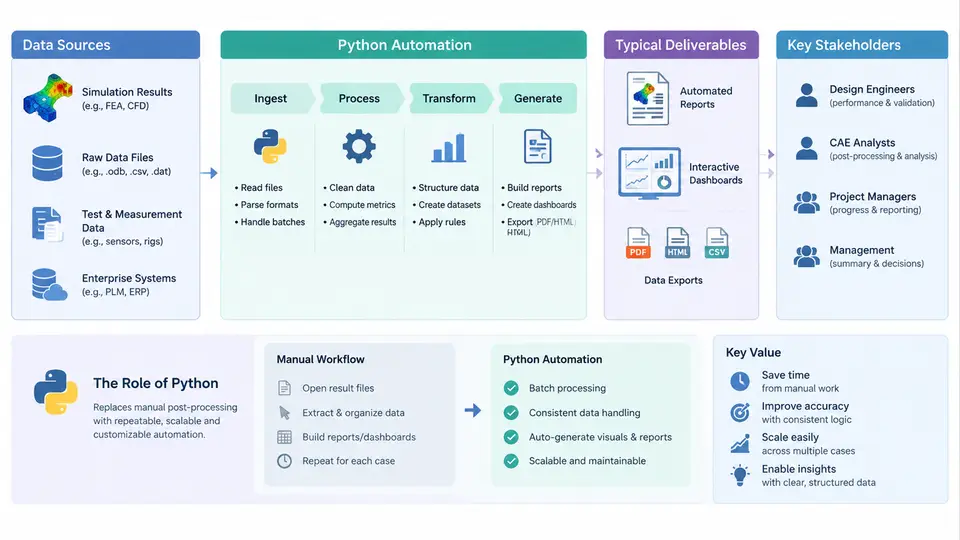
Computer-aided engineering (CAE) teams generate enormous volumes of simulation data, yet the value of that data is realized only when it reaches decision-makers in a usable form. In most organizations, the bottleneck is not the solver — it is the post-processing and reporting layer that sits between raw results and engineering judgment. This chapter maps the landscape of CAE reporting and dashboard automation: what teams typically deliver, who consumes those deliverables, where the data originates, and where Python fits as the glue that replaces repetitive manual work.
Typical Deliverables in CAE Reporting
CAE deliverables fall into a small number of recurring categories, each with different fidelity, cadence, and audience requirements:
- Single-analysis reports — a structured document (PDF, DOCX, or HTML) covering one load case or design variant: model setup summary, mesh quality metrics, boundary conditions, contour plots, tabulated peak values, and a pass/fail statement against targets.
- Design comparison studies — side-by-side tables and charts comparing variants (e.g., baseline vs. lightweighted bracket) across mass, stiffness, stress, and modal frequency.
- Regression and trend dashboards — time-series views tracking KPIs such as maximum von Mises stress, first natural frequency, or safety factor across program milestones or build iterations.
- Automated sanity/QA summaries — checks on solver convergence, energy balance, element quality, and unit consistency, often run before a human ever opens the results.
- Executive roll-ups — condensed one-page summaries aggregating many analyses into program-level status.
The key observation is that these deliverables are repetitive in structure but variable in content. The section headings, chart types, and table columns rarely change; only the numbers and images do. That structural stability is exactly what makes them automatable.
Stakeholders and Their Requirements
Different stakeholders impose different constraints on the same underlying data. A useful way to reason about automation scope is to map each audience to its required format, latency, and level of detail.
| Stakeholder | Primary Need | Typical Format | Cadence |
|---|---|---|---|
| CAE analyst | Full traceability, raw curves, model details | HTML/PDF report + result files | Per analysis |
| Design engineer | Variant comparison, margin to target | Comparison tables, overlay plots | Per design loop |
| Program / chief engineer | Status, risk, trend | Dashboard, one-pager | Weekly / milestone |
| Test & validation | Correlation between sim and test | Correlation plots, deviation tables | Per test campaign |
| Quality / certification | Evidence of margin, reproducibility | Signed report, archived artifacts | Per gate |
Because these audiences share a common data foundation but differ in presentation, the efficient architecture is to extract and normalize data once, then render multiple views from that single source. This is the central design principle behind nearly every successful CAE automation pipeline.
Data Sources Across the CAE Workflow
Automation must reach into several distinct data domains, each with its own access method and quirks:
- Solver input decks — text files (e.g.,
.inp,.bdf,.k,.cdb) containing mesh, materials, and boundary conditions. Parsed for model metadata and QA checks. - Solver output and result files —
.odb,.rst,.op2,.h3d, or vendor-neutral formats. These hold field results and are read via solver APIs or libraries such aspyansys,pyNastran, orodbAccess. - Log and status files —
.sta,.msg,.log, and solver stdout, used to detect convergence, warnings, and errors. - PLM / simulation data management (SDM) — metadata about part numbers, revisions, owners, and analysis status, often accessed via REST APIs.
- Spreadsheets and CSV exports — legacy KPI trackers and hand-maintained comparison tables that still drive many program reviews.
- Test data — measured strain, acceleration, or displacement, frequently in CSV or TDMS, used for correlation.
In practice, a single report may pull from four or five of these sources. The automation challenge is less about any one parser and more about orchestration: locating the right files, extracting consistent quantities, and assembling them into a coherent narrative.
Where Python Replaces Manual Post-Processing
Manual post-processing follows a predictable and costly pattern: open the GUI, load the result file, navigate to the right step and frame, select the component, query the maximum, screenshot the contour, paste it into a slide, type the number into a table, repeat for every load case. For a model with twenty load cases and five output quantities, that is hundreds of repetitive GUI interactions — each an opportunity for transcription error and inconsistency.
Python intervenes at every stage of that loop. The table below contrasts the manual and automated approaches for the same task.
| Task | Manual Approach | Python Approach |
|---|---|---|
| Extract peak stress | GUI query per load case | API loop over result steps |
| Generate contour images | Manual screenshot, fixed view | Scripted view, consistent scale |
| Build comparison table | Copy-paste into spreadsheet | DataFrame assembled and exported |
| Assemble report | Slide-by-slide editing | Templated HTML/PDF render |
| Update dashboard | Manual data entry | Scheduled refresh from source |
The automation does not remove engineering judgment — it removes the mechanical labor surrounding that judgment. The analyst still decides which quantities matter and what margin is acceptable; Python ensures those decisions are applied consistently and reproducibly across every case.
The End-to-End Automation Pipeline
The following diagram shows how data flows from source files through extraction and normalization into multiple rendered deliverables. Notice that extraction happens once, and rendering branches into report, dashboard, and QA outputs — this single-source-of-truth structure is what keeps results consistent across audiences.
A Minimal Working Example
To make the pipeline concrete, consider a small but realistic task: extract the maximum von Mises stress from a set of result files and produce a comparison table. Using pyNastran for an OP2 file, the extraction step looks like this:
from pyNastran.op2.op2 import OP2
import pandas as pd

cases = {
    "baseline": "run_baseline.op2",
    "lightweight_v2": "run_lw_v2.op2",
    "lightweight_v3": "run_lw_v3.op2",
}

rows = []
for name, path in cases.items():
    op2 = OP2()
    op2.read_op2(path)
    for subcase, stress in op2.op2_results.stress.items():
        peak = stress.data.max()
        rows.append({
            "variant": name,
            "subcase": subcase,
            "max_von_mises_MPa": round(float(peak), 1),
        })

df = pd.DataFrame(rows)
df.to_csv("stress_summary.csv", index=False)
print(df)
Running this against three result files produces a tidy CSV that can feed directly into a report template or dashboard. The expected output is a table with one row per variant-subcase combination. If a result file is missing or corrupt, read_op2 raises an exception — which is precisely the kind of failure that should be caught and logged rather than silently skipped, because a missing row in a stress summary is far more dangerous than a visible error.
Common Failure Modes and How to Recognize Them
Automation introduces its own class of failures, and recognizing their symptoms saves hours of debugging:
- Silent unit mismatch — results appear plausible but are off by a factor of 1000 (MPa vs. Pa). Symptom: stress values far outside the material's yield range. Fix: assert against material allowables.
- Wrong subcase or frame — the script reads step 1 when the critical condition is at step 12. Symptom: peak values lower than manual inspection. Fix: log the subcase ID and frame index alongside each value.
- Stale result files — the pipeline reads an old
.op2because the solver run failed but the previous file remained. Symptom: identical numbers across runs that should differ. Fix: check file modification time against the solver log timestamp. - Inconsistent contour scales — images generated with auto-scaled legends make variants look different when they are not. Symptom: visual comparison misleads. Fix: fix the color scale bounds explicitly per quantity.
What This Course Builds Toward
The remainder of this course develops each layer of the pipeline shown above: parsing solver outputs, normalizing data into consistent structures, generating templated reports, building interactive dashboards, and scheduling the whole process so it runs without manual intervention. The goal is not to replace the analyst but to give the analyst a reproducible, auditable, and fast path from simulation results to engineering decisions. The first step is understanding the landscape — which is what this chapter has established.