3. CAE tool integration fundamentals
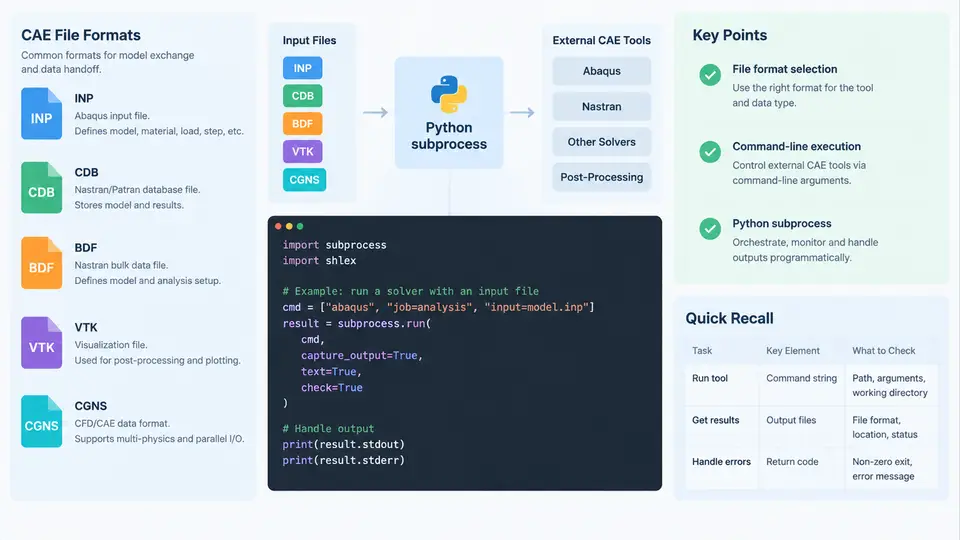
An automation platform is only as capable as its ability to talk to the solvers and pre/post-processors it drives. In a production CAE environment, that conversation happens through two channels: files (the structured data a solver reads and writes) and processes (the command-line programs that consume those files). This chapter covers the file formats you will encounter most often, how to invoke CAE tools reliably from the shell, and how to orchestrate them from Python using the subprocess module.
3.1 The File Formats You Will Actually Handle
CAE file formats fall into three functional groups: solver input decks, solver result databases, and neutral exchange formats. Recognizing which group a file belongs to tells you immediately whether it is something you generate, something you parse, or something you convert.
| Format | Typical Producer | Role | Structure |
|---|---|---|---|
.inp | Abaqus / CalculiX | Solver input deck | Keyword blocks (*NODE, *ELEMENT, *STEP) |
.cdb | ANSYS MAPDL | Solver input / result | Blocked, fixed-width or comma-delimited records |
.bdf | Nastran | Solver input deck | Fixed-field 8-column cards (GRID, CTETRA) |
.vtk / .vtu | ParaView, many solvers | Neutral visualization | ASCII or binary, points + cells + fields |
.cgns | CFD solvers, Pointwise | Neutral CFD exchange | Hierarchical ADF/HDF5 node tree |
The .inp format is line-oriented and human-readable. A minimal deck looks like this:
*HEADING
Cantilever beam, 10 mm mesh
*NODE
1, 0.0, 0.0, 0.0
2, 10.0, 0.0, 0.0
*ELEMENT, TYPE=C3D8, ELSET=SOLID
1, 1, 2, 5, 4, 101, 102, 105, 104
*MATERIAL, NAME=STEEL
*ELASTIC
210000.0, 0.3
*STEP, NLGEOM=OFF
*STATIC
*BOUNDARY
1, 1, 3, 0.0
*CLOAD
2, 2, -500.0
*END STEP
Nastran .bdf files use a stricter fixed-field layout where each card occupies exactly 8 columns per field. This matters when you generate decks programmatically: a misplaced comma or a value that overflows its field will silently corrupt the model. The .cdb format from MAPDL is similar in spirit but uses its own block delimiters and is often written in binary for large models.
For post-processing, .vtk and .cgns are the two formats worth mastering. VTK is trivial to write from Python (via meshio or pyvista) and is the lingua franca of ParaView. CGNS is more structured, supports multi-zone CFD meshes with boundary conditions, and is the safer choice when exchanging data with external CFD groups.
3.2 Command-Line Execution of CAE Tools
Almost every CAE solver exposes a non-interactive command-line interface. The pattern is consistent: point the executable at an input file, specify a working directory, and let it write output files. Three examples:
# Abaqus
abaqus job=beam input=beam.inp cpus=4 interactive

# ANSYS MAPDL (batch)
ansys252 -b -i model.dat -o solve.out -np 4

# CalculiX
ccx -i beam -o beam.log
Two details trip up automation engineers repeatedly. First, most solvers write scratch files into the current working directory, not the directory containing the input file. If you launch from the wrong place, you get permission errors or files scattered across the filesystem. Second, exit codes are not always reliable — some solvers return 0 even when the analysis diverges. You must inspect the solver's log or .sta/.msg files to confirm success.
A robust invocation therefore has four parts: a controlled working directory, an explicit input path, a captured stdout/stderr stream, and a post-run check of the solver's own status output.
3.3 Orchestrating Solvers with Python subprocess
The subprocess module is the correct tool for launching external programs. Avoid os.system — it offers no control over arguments, no capture of output, and no exit-code handling. The modern API is subprocess.run:
import subprocess
from pathlib import Path

def run_abaqus(work_dir: Path, job_name: str, inp_file: Path,
               cpus: int = 4, timeout: int = 3600) -> dict:
    cmd = [
        "abaqus",
        f"job={job_name}",
        f"input={inp_file.name}",
        f"cpus={cpus}",
        "interactive",
    ]
    try:
        proc = subprocess.run(
            cmd,
            cwd=work_dir,
            capture_output=True,
            text=True,
            timeout=timeout,
            check=False,
        )
    except subprocess.TimeoutExpired:
        return {"status": "timeout", "job": job_name}

    sta = work_dir / f"{job_name}.sta"
    converged = sta.exists() and "THE ANALYSIS HAS COMPLETED" in sta.read_text()

    return {
        "status": "ok" if (proc.returncode == 0 and converged) else "failed",
        "returncode": proc.returncode,
        "stdout": proc.stdout[-2000:],
        "stderr": proc.stderr[-2000:],
    }
Several design choices in this snippet are deliberate. Passing the command as a list rather than a string avoids shell quoting problems and prevents injection when file names contain spaces. Setting cwd=work_dir keeps all scratch files contained. capture_output=True with text=True gives you decoded strings for logging. The timeout guards against hung solvers. And crucially, the function does not trust the return code alone — it reads the .sta file to confirm convergence.
shell=True with user-supplied paths. A file named model; rm -rf / will be executed as two commands. Always pass argument lists.
3.4 A Minimal End-to-End Pipeline
The following example ties the pieces together: it generates a parametric .inp deck, runs the solver, and converts the result to VTK for inspection. The parameters are illustrative, not measured results.
from pathlib import Path
import subprocess

def write_deck(path: Path, length: float, load: float) -> None:
    path.write_text(f"""*HEADING
Parametric beam, L={length}
*NODE
1, 0.0, 0.0, 0.0
2, {length}, 0.0, 0.0
*ELEMENT, TYPE=B31, ELSET=BEAM
1, 1, 2
*MATERIAL, NAME=STEEL
*ELASTIC
210000.0, 0.3
*STEP
*STATIC
*BOUNDARY
1, 1, 6, 0.0
*CLOAD
2, 2, {load}
*END STEP
""")

work = Path("./runs/beam_01")
work.mkdir(parents=True, exist_ok=True)
write_deck(work / "beam.inp", length=100.0, load=-250.0)

result = run_abaqus(work, "beam", work / "beam.inp", cpus=2)
print(result["status"])
After a successful run, the solver produces beam.odb (Abaqus result database). Converting it to VTK typically requires a second tool — abaqus python with the ODB API, or a converter such as meshio for formats it supports. The conversion step is itself a subprocess call, so the same orchestration pattern applies.
3.5 What to Verify Before Trusting a Run
Automation multiplies whatever you feed it, including mistakes. Before scaling a pipeline to hundreds of jobs, confirm four things on a single run:
- Exit code and solver status agree. A zero exit code with a diverged
.stafile means the wrapper is lying to you. - Output files exist and are non-empty. Check file size, not just presence.
- Key result values are physically plausible. A tip deflection of 109 mm signals a unit or boundary-condition error, not a stiff structure.
- The working directory is clean between runs. Stale scratch files from a previous job can silently contaminate the next one.
These checks belong in the orchestration layer, not in the engineer's head. Once they are encoded as assertions in the Python wrapper, the platform can run unattended and fail loudly when something is wrong.
The diagram above summarizes the integration stack: the Python orchestrator builds and dispatches commands, the solver consumes a native input deck and produces results, and a verification layer confirms the run before downstream steps consume its output. Each layer is independently testable, which is what makes the pipeline maintainable as the number of supported solvers grows.