3. Model setup workflow
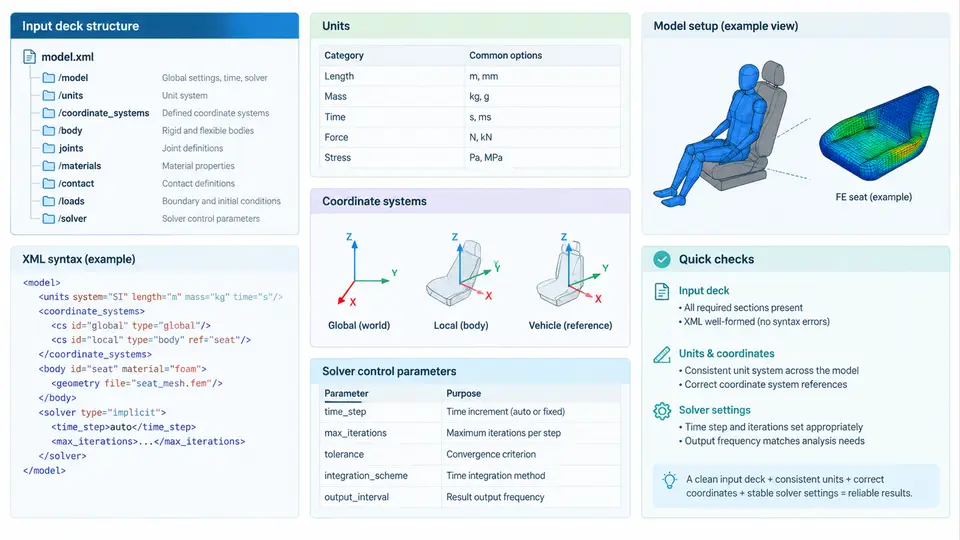
MADYMO models are driven entirely by a single XML input deck. Understanding how that deck is structured, how the XML parser interprets it, and how units, coordinate systems, and solver controls interact is the foundation for every subsequent modeling decision. A model that runs without errors but uses inconsistent units or a misaligned coordinate frame will produce plausible-looking but physically wrong results. This section walks through the complete setup workflow from file skeleton to solver execution.
3.1 Input Deck Skeleton and XML Syntax Rules
A MADYMO input deck is a well-formed XML document. The root element is <MADYMO>, and it contains a <CONTROL> block followed by one or more model definition blocks. The parser is strict: every opening tag must have a matching closing tag, attribute values must be quoted, and element names are case-sensitive. Unlike many simulation tools that tolerate free-format text, MADYMO will reject a deck with a single unclosed tag or a misplaced attribute.
<?xml version="1.0" encoding="UTF-8"?>
<MADYMO version="7.8">
  <CONTROL>
    <TITLE>Frontal impact - Hybrid III 50th</TITLE>
    <TIME> T_END="0.120" />
    <INTEGRATOR> TYPE="RUNGE_KUTTA" />
  </CONTROL>

  <SYSTEM>
    <MB_SYSTEM> ID="1" NAME="vehicle_body" />
    <FE_MODEL> ID="10" FILE="dummy_fe.xml" />
  </SYSTEM>
</MADYMO>
Three syntax conventions matter in practice. First, attributes are always written as NAME="value" with double quotes; single quotes are not accepted by the MADYMO parser. Second, comments use standard XML syntax <!-- ... --> and can be placed anywhere between elements. Third, the ID attribute is the primary key for cross-referencing: a multibody system, an FE model, a joint, or a force element all carry a unique integer ID, and references between them use that ID rather than the name. Names are for human readability only.
3.2 Units: The Consistent Millimeter-Ton-Second System
MADYMO does not enforce a unit system internally. The solver simply evaluates the numbers you provide. This means the modeler must choose a consistent set and apply it everywhere. The de facto standard for occupant safety work is the mm-ton-s system, because dummy geometry, belt lengths, and crash pulses are all naturally expressed in millimeters and milliseconds.
| Quantity | Unit | Derived expression |
|---|---|---|
| Length | mm | — |
| Mass | tonne (t) | 1 t = 1000 kg |
| Time | s | — |
| Force | N | kg·m/s² = t·mm/s² × 10⁻³ |
| Stress / pressure | MPa | N/mm² |
| Density | t/mm³ | e.g. steel = 7.85 × 10⁻⁹ |
| Young's modulus | MPa | e.g. steel = 2.1 × 10⁵ |
The critical trap is density. Steel at 7850 kg/m³ becomes 7.85 × 10⁻⁹ t/mm³, not 7.85 × 10⁻⁶. A density error of three orders of magnitude produces a model that either explodes or barely moves, and the symptom is often misdiagnosed as a contact or time-step problem. Always verify density by computing the mass of a known part: a 1 mm × 1 mm × 1 mm steel cube should weigh 7.85 × 10⁻⁹ t, or 7.85 mg.
3.3 Coordinate Systems and Reference Frames
MADYMO uses a right-handed Cartesian coordinate system. The global frame is defined by the modeler, but the SAE J211 convention is almost universal in occupant simulation: +X forward (direction of vehicle travel), +Y to the right (from the occupant's perspective), and +Z upward. Rotations follow the right-hand rule about each axis.
Every multibody system and FE model carries its own local frame. The position and orientation of a local frame relative to its parent are specified through POS and ORI attributes. POS is a three-component translation vector; ORI is a three-component rotation vector (Euler angles or cardan angles, depending on the ORI_TYPE setting). The order of rotation application matters: with ORI_TYPE="CARDAN", rotations are applied about X, then Y, then Z of the parent frame.
<MB_SYSTEM ID="1">
  <BODY ID="2" POS="0.0 0.0 500.0" ORI="0.0 0.0 0.0" />
  <BODY ID="3" POS="300.0 0.0 500.0" ORI="0.0 0.0 15.0" />
</MB_SYSTEM>
In this example, body 3 sits 300 mm forward of body 2 and is rotated 15° about the global Z axis. A common error is to assume that ORI is applied in the local frame of the body itself; it is not. ORI defines the body's orientation relative to its parent, and the rotation is applied about the parent's axes. When chaining multiple bodies, always trace the parent-child hierarchy to confirm the cumulative transform.
3.4 Solver Control Parameters
The <CONTROL> block governs how the solver advances time, handles contact, and writes output. The most consequential parameters are:
T_END— simulation end time in seconds. For a frontal impact, 0.120 s is typical; for a rollover, 2–5 s.TIME_STEP— initial integration step. MADYMO adjusts this automatically for FE models based on element size and wave speed, but the initial value sets the starting point.INTEGRATOR—RUNGE_KUTTA(default, explicit, good for multibody) orIMPLICIT(for stiff FE-dominated models).CONTACT_TYPE—MASTER_SURFACEorMULTI_SURFACE. The choice affects both accuracy and runtime.OUTPUT— controls the time interval for writing.kn3and.datfiles. A common setting isT_STEP="0.001"for 1 ms output resolution.
<CONTROL>
  <TITLE>Frontal impact - Hybrid III 50th</TITLE>
  <TIME> T_END="0.120" />
  <INTEGRATOR> TYPE="RUNGE_KUTTA" />
  <CONTACT> TYPE="MASTER_SURFACE" FRICTION="0.3" />
  <OUTPUT> T_STEP="0.001" />
</CONTROL>
The time step is the single most important runtime parameter. For an FE model, the stable time step is approximately Δt = L_min / c, where L_min is the smallest element edge length and c is the material wave speed. For steel, c ≈ 5000 m/s = 5 × 10⁶ mm/s. A 2 mm element therefore gives Δt ≈ 4 × 10⁻⁷ s. If the solver reports a time step far below this estimate, look for a degenerate or collapsed element.
3.5 Workflow Summary and Verification
The complete setup workflow can be visualized as a dependency chain from raw geometry through unit assignment, coordinate placement, and solver control to a runnable deck. The diagram below shows the key decision points and the verification check that should accompany each stage.
After the deck passes all four verification stages, the first solver run should be treated as a diagnostic run, not a production run. Set T_END to a short value (e.g., 0.005 s) and inspect the .dat file for the reported time step, energy balance, and any warning messages. If the time step is stable and the energy balance closes within a few percent, extend to the full duration. This incremental approach catches unit and coordinate errors before they propagate into a full-length simulation that wastes hours of compute time.
L_min / c by more than a factor of two, stop and investigate before running the full simulation. The cause is almost always a unit inconsistency, a degenerate element, or an incorrect material wave speed.