1. CAE results data landscape
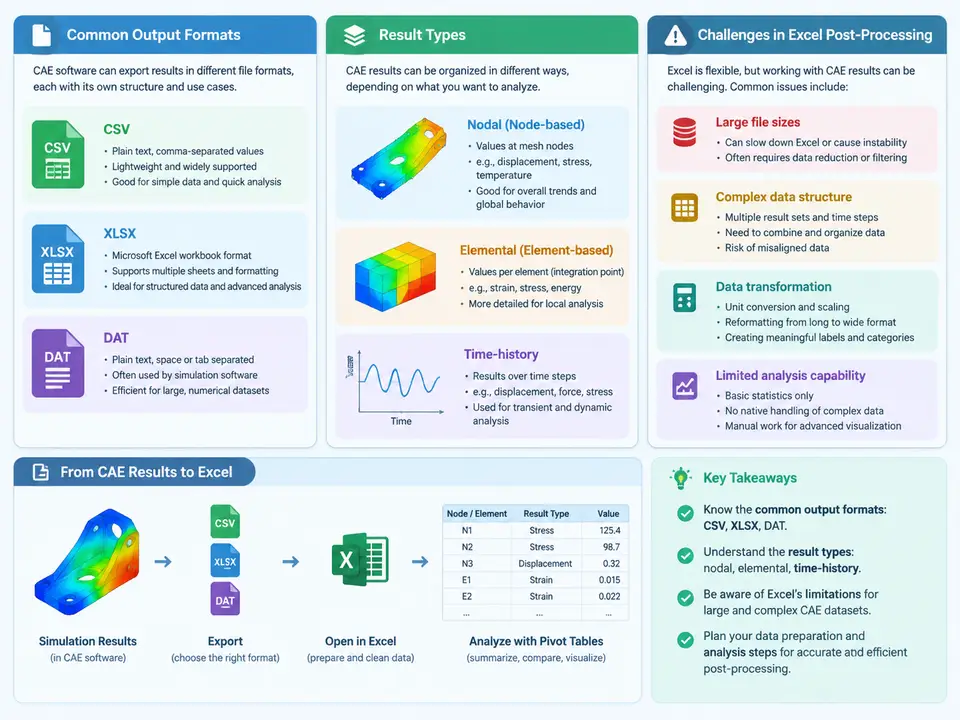
Before a single pivot table is built, the analyst must understand what the solver actually hands back. CAE post-processing in Excel is not a matter of opening a file and dragging fields into a PivotTable; it is a data-engineering problem disguised as a spreadsheet task. Solvers such as Abaqus, ANSYS, Nastran, LS-DYNA, and OpenFOAM produce results in formats optimized for numerical fidelity and storage efficiency, not for tabular aggregation. The first chapter therefore establishes the data landscape: which formats appear, what each row and column physically represents, and where Excel's model breaks down.
Output formats and what they carry
Three format families dominate the workflow. CSV (comma-separated values) is the most Excel-friendly: it is plain text, one record per line, and can be read directly. However, CAE-derived CSV is rarely clean — headers may span multiple lines, delimiters may be semicolons in European locales, and large nodal exports can exceed one million rows, hitting Excel's worksheet limit of 1,048,576 rows. XLSX is often produced by solver add-ins or by engineers who manually paste probe results; it preserves multiple sheets and named ranges but is a derived, not native, format. DAT files (and their cousins .rst, .odb, .op2) are the native solver outputs. They are fixed-width or keyword-blocked text/binary structures, for example an Abaqus .dat history output block or a Nastran .op2 binary, and require a parser or the solver's own translator before Excel can consume them.
| Format | Typical origin | Structure | Excel readiness |
|---|---|---|---|
| CSV | Solver export, Python/script dump | Delimited rows, single table | High, but row-limit and delimiter risks |
| XLSX | Add-in export, manual probe capture | Multi-sheet, typed cells | Native |
| DAT / RST / OP2 | Native solver output | Keyword blocks, fixed-width, binary | Low — needs translation |
Result types and their tabular shape
The second distinction is what the numbers describe, because each result type maps to a different table geometry. Nodal results (displacement, temperature, velocity) are defined per node: one row per node per time step, with columns for node ID, coordinates, and components U1, U2, U3. Elemental results (stress, strain, elemental energy) are defined per element or per integration point; a single element may contribute several rows, and values are constant or extrapolated across the element. Time-history results add a temporal axis: the same node or element repeats for every increment, so row count multiplies by the number of frames. A modal or frequency-response set adds a mode or frequency index instead of time.
This geometry matters because pivot tables aggregate by category. Averaging nodal displacement across a surface is meaningful; averaging elemental von Mises stress across elements of different size is a mesh-weighted question, not a simple mean. The analyst must decide whether the pivot's value field should be a sum, mean, max, or a count, and whether the row grain is node, element, time step, or load case.
Why Excel struggles with this data
Four concrete friction points recur in practice. First, row-count ceilings: a transient run with 50,000 nodes and 500 frames yields 25 million rows, far beyond one worksheet. The standard remedy is to aggregate before loading — reduce to peak values per node, or split by frame into separate sheets — rather than attempting to pivot the raw dump. Second, type and locale issues: solver output may use D exponent notation (1.23D+02) that Excel reads as text, and decimal commas that break numeric parsing. Third, grain mismatch: mixing nodal and elemental rows in one table produces meaningless averages, because the two populations have different cardinality and physical meaning. Fourth, missing metadata: a bare CSV of numbers loses the unit system, coordinate frame, and load-case label, so the pivot's row labels become opaque IDs.
A reproducible ingestion pattern
A practical, repeatable path looks like this. Export or parse the native result into a flat CSV with a header row such as node_id,step,U1,U2,U3. Open it in Excel via Data → From Text/CSV, explicitly setting the delimiter and the decimal separator, and confirm that the displacement columns show as numbers (right-aligned) rather than text. For oversized files, pre-aggregate in Python or the solver's query tool to one row per node holding the maximum magnitude and its frame index, then load that reduced table. Finally, convert the range to an Excel Table (Ctrl+T) so the PivotTable source expands automatically when new load cases are appended.
# Example: reduce a nodal time-history CSV to peak-per-node before Excel
import pandas as pd
df = pd.read_csv("nodal_history.csv")          # columns: node_id, step, U1, U2, U3
df["mag"] = (df.U1**2 + df.U2**2 + df.U3**2) ** 0.5
peak = df.loc[df.groupby("node_id")["mag"].idxmax()]
peak.to_csv("nodal_peak.csv", index=False)     # one row per node, ready to pivot
Verification is straightforward: the reduced table should have exactly one row per unique node_id, and the row count should equal the node count reported by the solver. If it does not, duplicate IDs or a misread delimiter are the usual culprits. With a clean, correctly grained flat table in hand, the pivot table becomes a reliable analytical instrument rather than a source of silent numerical error.