1. Course overview
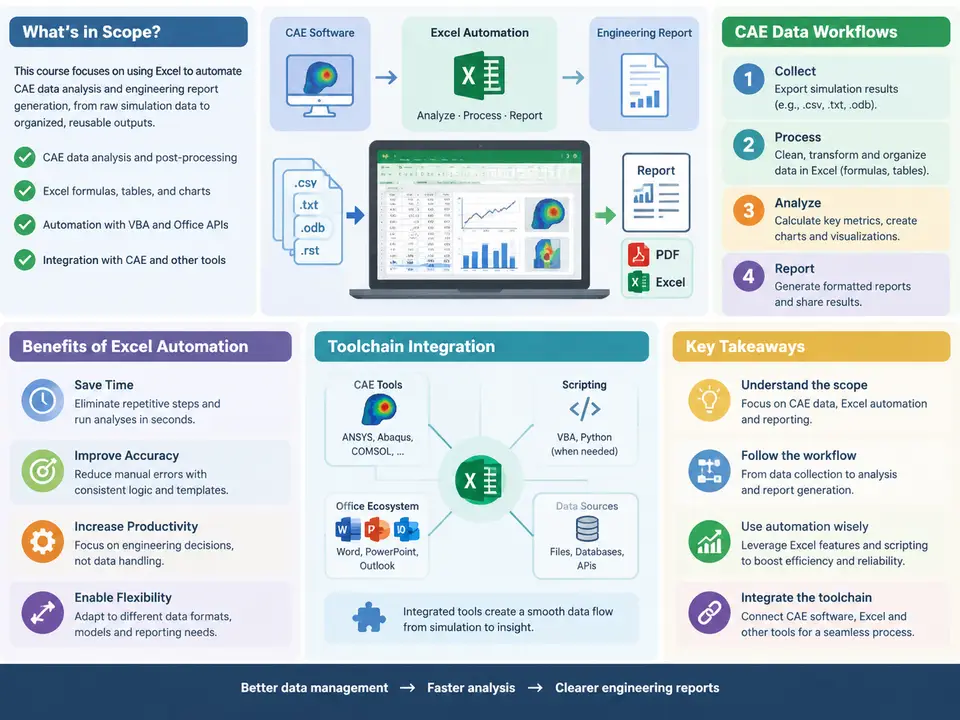
This course is about turning Excel from a passive spreadsheet into an active processing layer inside a Computer-Aided Engineering (CAE) workflow. The scope is deliberately narrow and practical: we do not teach finite element theory, and we do not attempt to replace dedicated post-processors such as ANSYS Mechanical, Abaqus/Viewer, or Altair HyperView. Instead, we focus on the repetitive, error-prone work that sits between simulation and the engineering report — extracting result files, consolidating load cases, computing derived quantities, building comparison tables, and generating charts that survive review.
The typical CAE data workflow has four stages. Pre-processing produces solver input decks and mesh statistics. Solving writes result files (for example .rst, .odb, .op2, or CSV exports from a post-processor). Post-processing extracts scalar and vector quantities at probes, paths, or named selections. Reporting assembles those numbers into tables, plots, and conclusions. Excel automation is most valuable in the third and fourth stages, where the same extraction logic is repeated across dozens of design variants, load cases, or subassemblies.
openpyxl, pandas, or xlwings) is used to drive Excel, not to replace it.
The reference workflow used throughout the course
To keep examples concrete, the course uses a running scenario: a bracket assembly analysed under five load cases (LC1–LC5) across three design variants (V1–V3), giving 15 result sets. Each result set yields peak von Mises stress, maximum displacement, first natural frequency, and mass. Manually, that is 60 numbers to transcribe, plus derived ratios and pass/fail flags — a task that takes roughly 40 minutes and produces at least one transcription error in most engineering teams. The automated version takes under 30 seconds and is reproducible.
The diagram below shows how the toolchain connects. Note that Excel is not a dead-end sink: it reads structured exports, applies formulas and validation, and writes back a consolidated summary that can feed a report template or a downstream dashboard.
What "Excel automation" actually means here
Automation in this course spans three levels, and it is worth being explicit about which level a given task needs.
- Level 1 — Formula-driven: structured references,
INDEX/MATCH,XLOOKUP, dynamic arrays, and named ranges. No code, but the workbook recalculates correctly when new rows arrive. - Level 2 — Query-driven: Power Query imports a folder of CSVs, unpivots load-case columns, applies type changes, and appends new variants. Refresh replaces manual copy-paste.
- Level 3 — Script-driven: VBA or Python (
openpyxl,xlwings) orchestrates extraction, writes results into the workbook, and triggers report generation. This is where the 40-minute manual task collapses to seconds.
A common mistake is jumping straight to Level 3. In practice, a well-structured Level 2 workbook handles 80% of routine CAE reporting, and it is far easier for a colleague to audit than a 600-line VBA module. The course therefore builds upward: formulas first, then queries, then scripts.
Toolchain integration in practice
The integration points that matter most are file naming, schema stability, and unit conventions. Consider the extraction step. A robust script writes one CSV per result set with a fixed header, for example:
variant,load_case,peak_vm_stress_MPa,max_disp_mm,f1_Hz,mass_kg
V1,LC1,142.3,0.84,312.5,2.41
V1,LC2,158.9,1.02,312.5,2.41
V1,LC3,131.7,0.71,312.5,2.41
...
Because the header is stable, Power Query can point at the folder C:\cae\bracket\results\ and combine all files without per-file configuration. When V4 is added, the engineer drops in new CSVs and clicks Refresh All. The consolidated table grows, the pivot summary updates, and the pass/fail column recalculates against the allowable stress.
peak_vm_stress_MPa). Mixed units are the single most common source of silent reporting errors in CAE workbooks, because a factor-of-10⁶ mistake still produces a plausible-looking number.
What you will be able to do by the end
The course is structured so that each chapter produces a reusable artefact. Early chapters build the import and consolidation layer. Middle chapters cover derived calculations (safety factors, stress ratios, frequency margins), conditional formatting for out-of-limit results, and chart automation. Later chapters address report assembly, template-driven export, and version control of workbooks. By the final chapter you should be able to take a folder of raw solver outputs and produce a reviewed, charted, sign-off-ready summary workbook with a single refresh action — and to explain, cell by cell, where every number came from.