1. CAE data workflows in Excel
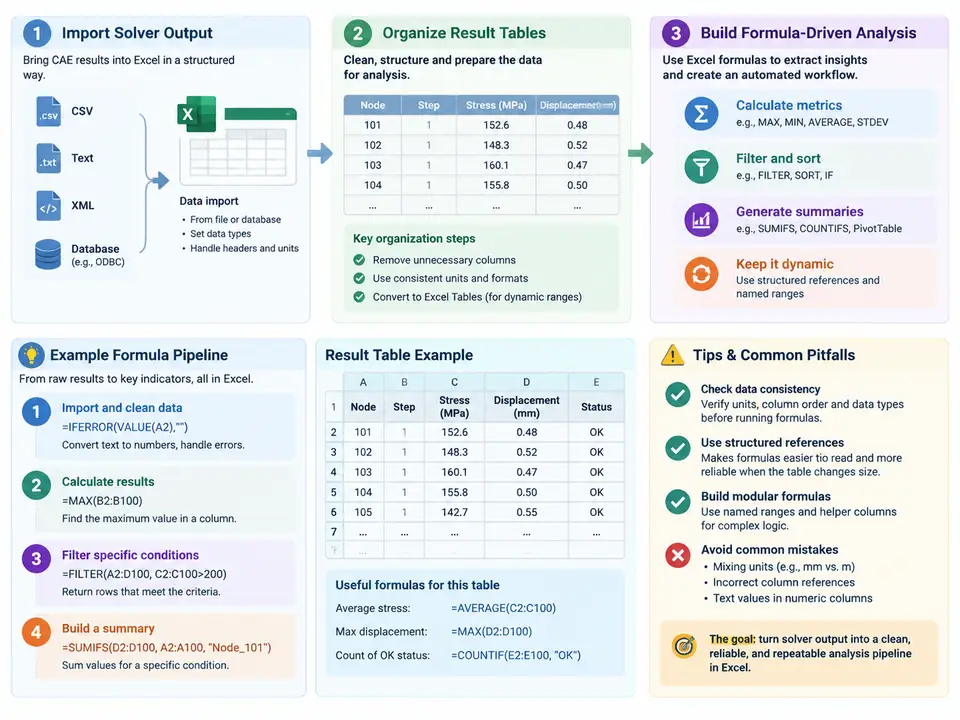
CAE analysts rarely struggle to obtain results; they struggle to keep results trustworthy once they leave the solver. A single transient run may emit dozens of CSV files, each with thousands of rows of nodal or elemental data, and the post-processing that follows is where errors quietly accumulate: a misaligned time step, a duplicated node ID, a unit conversion applied twice. Excel is an excellent environment for this work precisely because it is transparent — every transformation is visible in a cell — but only if the workbook is structured as a deliberate pipeline rather than a collection of ad-hoc sheets. This chapter establishes that structure.
From solver output to a stable import contract
Most solvers (Abaqus, ANSYS, Nastran, OpenFOAM, LS-DYNA) can export tabular results as CSV or whitespace-delimited text. The first engineering decision is not which formula to use but what the import contract looks like: a fixed column order, a fixed header row, a fixed delimiter, and a fixed numeric locale. Treat the raw export as immutable. Place it on a sheet named RAW (or better, keep it as an external file referenced by Power Query) and never edit it in place. Every downstream sheet reads from RAW through formulas or a query, so that re-exporting the solver results and refreshing propagates cleanly.
A typical nodal displacement export might look like this:
NODE_ID,TIME,X_DISP,Y_DISP,Z_DISP,VON_MISES
1001,0.000,0.000E+00,0.000E+00,0.000E+00,1.24E+02
1001,0.010,1.83E-03,-4.10E-04,2.07E-05,1.31E+02
1001,0.020,3.71E-03,-8.02E-04,4.19E-05,1.44E+02
1002,0.000,0.000E+00,0.000E+00,0.000E+00,9.87E+01
...
Two properties of this file matter immediately. First, it is in long format: one row per (node, time) pair. Second, the numbers use scientific notation with an E exponent, which Excel parses correctly only when the cell is genuinely numeric — a common failure is importing as text because the locale expects a comma decimal separator. Verify by selecting a numeric column and checking that the status bar shows a Sum rather than a Count. If it shows Count, the values are text and every downstream formula will silently return zero or #VALUE!.
Organizing result tables: long versus wide
Long format is ideal for storage and for pivot tables, but most engineering formulas want a wide layout: one row per node, one column per time step, so that a time history sits along a single row. Converting between the two is the central organizational task of a CAE workbook. The modern approach is a PivotTable or UNIQUE/FILTER combination rather than manual copy-paste.
For a compact, formula-driven wide table, use dynamic arrays. Assuming RAW holds the data above with headers in row 1 and data in A2:F5001, the unique node list is:
=SORT(UNIQUE(RAW!A2:A5001))and the displacement at a chosen time for each node can be pulled with XLOOKUP on a concatenated key, or more robustly with SUMIFS:
=SUMIFS(RAW!C:C, RAW!A:A, $A2, RAW!B:B, B$1)Here $A2 is the node ID down the left column and B$1 is the time value across the header row. SUMIFS is used rather than VLOOKUP because it is order-independent, tolerates the long-format layout, and returns 0 for missing combinations — which you should then guard against, since a genuine zero displacement and a missing record are different things. Wrap it:
=IF(COUNTIFS(RAW!A:A,$A2,RAW!B:B,B$1)=0,"",SUMIFS(RAW!C:C,RAW!A:A,$A2,RAW!B:B,B$1))This distinction — empty string for "no record" versus numeric zero for "measured zero" — is one of the most valuable habits in CAE spreadsheet work, because it prevents a missing time step from being averaged into a peak-value calculation as if it were a real data point.
Building the formula-driven analysis layer
With a clean wide table in place, the analysis layer is a set of named, single-purpose formula columns. Suppose the wide sheet WIDE has node IDs in A2:A2001 and time steps in B1:AZ1 (0 to 0.5 s in 0.01 s increments), with X-displacement in B2:AZ2001. Three metrics cover most screening needs:
- Peak absolute displacement per node:
=MAX(ABS(B2:AZ2))entered as a dynamic array, or=MAX(MAX(B2:AZ2),-MIN(B2:AZ2))for compatibility with older Excel. - RMS displacement over the time window:
=SQRT(SUMSQ(B2:AZ2)/COUNT(B2:AZ2)). UsingCOUNTrather than a hard-coded 50 makes the formula survive a change in the number of exported time steps. - Time of peak:
=INDEX($B$1:$AZ$1, MATCH(MAX(ABS(B2:AZ2)), ABS(B2:AZ2), 0))— useful for correlating a peak with an event in the load history.
These columns should live on a dedicated METRICS sheet that references WIDE by structured reference or by explicit range, never by copied values. When the solver is re-run with a finer mesh, only RAW is refreshed; WIDE and METRICS recalculate automatically. That is the entire value proposition of a formula-driven pipeline: the analysis logic is written once and re-applied to every subsequent run.
A worked example with observable checks
Consider a modal frequency-response study where the solver exports 2,000 nodes × 51 frequency points. The expected row count in RAW is 102,000. After import, place a validation block on a CHECKS sheet:
Expected rows:   =2000*51
Actual rows:     =COUNTA(RAW!A:A)-1
Row check:       =IF(Actual=Expected,"PASS","FAIL — re-export")
Numeric check:   =IF(COUNT(RAW!C:C)=Actual,"PASS","FAIL — text values present")
Duplicate keys:  =SUMPRODUCT(--(COUNTIFS(RAW!A:A,RAW!A2:A102001,RAW!B:B,RAW!B2:B102001)>1))
If the row check fails, the usual causes are a truncated export (solver wrote only the last frame) or a header row counted twice. If the numeric check fails, the locale is wrong — re-import with the decimal separator set explicitly. If duplicates appear, the solver wrote both nodal and elemental results into the same file; split them at the import stage rather than deduplicating downstream, because deduplication silently discards legitimate repeated values at symmetric nodes.
Practical conventions that keep the workbook maintainable
Three conventions pay for themselves within the first re-run. First, one sheet, one responsibility: RAW, WIDE, METRICS, CHECKS, REPORT. Second, named ranges for physical constants — E_MODULUS, YIELD_STRESS, SAFETY_TARGET — so that a material change is a single edit rather than a search-and-replace across formulas. Third, units in the header, not in the cell: write X_DISP_mm in the header and keep the cell purely numeric, so that arithmetic never has to strip a suffix.
Finally, document the import contract in a small block at the top of RAW: solver version, export date, delimiter, locale, and the expected row count. When a colleague opens the workbook six months later, that block is the difference between a five-minute refresh and a half-day of reverse-engineering. The pipeline is only as reliable as its least-documented assumption, and in CAE analytics the assumptions are always about units, ordering, and completeness — exactly the three things the validation gate is built to catch.