1. CAE results data landscape
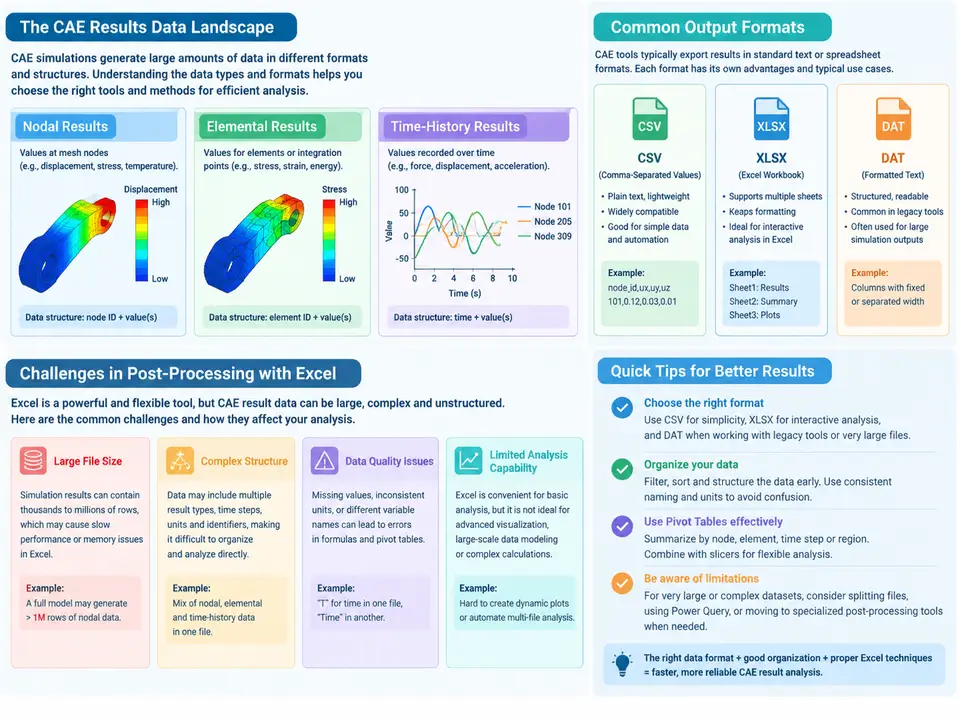
Before a single pivot table is built, the analyst must confront a deceptively simple question: what exactly is sitting in that results directory? CAE solvers rarely hand back tidy, analysis-ready tables. They emit a mixture of ASCII text, binary containers, and structured archives whose layout is dictated by solver internals rather than by reporting convenience. Understanding this data landscape — the file formats, the physical meaning of each result type, and the specific ways Excel struggles with them — determines whether the downstream statistical workflow is a ten-minute pivot refresh or a multi-day data-wrangling exercise.
Output formats and what they actually contain
Three format families dominate CAE post-processing handoffs, and each carries distinct structural assumptions.
CSV (comma-separated values) is the most common interchange format because nearly every solver, pre-processor, and scripting environment can write it. A typical nodal export looks like this:
NODE_ID,X,Y,Z,DISPMAG,VONMISES,TEMP
1001,0.000,0.000,0.000,0.000E+00,1.24E+02,2.01E+01
1002,12.500,0.000,0.000,3.71E-02,1.31E+02,2.03E+01
1003,25.000,0.000,0.000,7.02E-02,1.45E+02,2.06E+01
...
CSV is human-readable and trivially imported, but it is also lossy in ways that matter: no unit metadata, no coordinate-system declaration, no distinction between nodal and elemental association unless encoded in the header, and no compression. A 2-million-node model with ten result columns produces a file in the hundreds of megabytes, which Excel cannot open in a single worksheet.
XLSX appears when results have already passed through a reporting layer — a macro, a Python script using openpyxl, or a solver's built-in Excel export. XLSX preserves multiple sheets (useful for separating load cases), supports typed cells, and can carry lightweight metadata in sheet names or header rows. Its limitation is the opposite of CSV's: the 1,048,576-row × 16,384-column worksheet ceiling becomes a hard wall for large meshes, and formula-heavy workbooks recalculate slowly when result tables are pasted in.
DAT is the least standardized and the most solver-specific. In many codes it is a fixed- or free-format ASCII block file, often with a header line declaring the result name, a component count, and a data-type flag, followed by records in solver-defined order. A representative nodal displacement block might read:
 RESULT: DISPLACEMENT  COMPONENTS: 3  TYPE: NODAL
 1001  0.000E+00  0.000E+00  0.000E+00
 1002  3.710E-02  1.020E-03 -4.400E-04
 1003  7.020E-02  2.110E-03 -8.900E-04
DAT files are compact and fast to parse programmatically, but they demand a parser that knows the exact column layout, and a single misaligned header silently shifts every value by one field. They also frequently omit node coordinates, forcing a join against a separate mesh file before any spatial analysis is possible.
Result types and their structural signatures
The second axis of the landscape is physical: what kind of quantity is being reported, and at what topological location does it live?
Nodal results are defined at mesh nodes and are typically averaged or extrapolated from element integration points. Displacement, temperature, and velocity are canonical nodal quantities. Their structural signature is one row per node per result per time/frame, keyed by node ID. Because nodes are shared between adjacent elements, nodal results are naturally continuous across element boundaries — convenient for contour plots, but a trap for statistics: averaging nodal values across a surface double-counts shared nodes unless the analyst deduplicates by node ID first.
Elemental results are defined at element centroids or integration points. Stress and strain components, element energy, and failure indices usually fall here. Their signature is one row per element per result, keyed by element ID, and they are inherently discontinuous across element boundaries. Elemental data cannot be joined to nodal coordinates without an element-to-node mapping, which is the single most common source of "my stress values don't line up with my geometry" confusion in Excel workflows.
Time-history results add a temporal axis. A single node or element may carry thousands of time steps, so the table becomes long rather than wide: one row per (entity, time step) pair. This is the format that most directly rewards pivot tables — grouping by time bin, filtering to peak intervals, or computing per-entity statistics across the history — but it is also the format that most quickly exhausts Excel's row limit.
Why Excel struggles — and what to do about it
Excel is an excellent statistical and pivot engine, but it was not designed as a CAE results database. Four constraints recur in practice.
The row ceiling. A worksheet holds 1,048,576 rows. A 500,000-element mesh with a single elemental stress result fits; add three time frames and it does not. The workaround is not to fight the limit but to aggregate before import: reduce to peak-per-entity, or bin time steps, or split by load case into separate sheets and consolidate with Power Query. Importing the full raw table and hoping is the failure mode that produces truncated data with no error message.
Missing metadata. CSV and DAT rarely declare units or the coordinate frame in which vectors are expressed. A displacement magnitude in millimeters and one in meters look identical in a column of floats. The disciplined fix is to attach metadata at the import boundary — a header row, a companion parameter sheet, or a Power Query step that injects Unit and Frame columns — so that every downstream pivot carries its provenance. When vector components are involved, state the reference frame explicitly (for example, global Cartesian with +Z vertical) and keep that convention consistent through every table and chart.
Key-join mismatch. Nodal and elemental results share no common key. Joining them requires an element-to-node mapping table, and a careless VLOOKUP or merge will either drop unmatched rows or duplicate shared nodes. The reliable pattern is to build a normalized long table with explicit EntityID, EntityType, ResultName, Component, Frame, Value, and Unit columns, then let pivot tables do the grouping. This single structural decision eliminates most of the "why don't my numbers match the contour plot" problems.
Type and precision drift. Excel stores numbers as IEEE 754 doubles, which is fine for most result magnitudes but can introduce visible rounding when differencing large coordinates or accumulating many small time steps. More insidious is automatic type coercion: a node ID like 001234 becomes 1234, breaking joins against a mesh file that preserved leading zeros. Import with explicit column types rather than letting Excel guess.
The practical takeaway for the rest of this course is that the pivot table is the last step, not the first. The analyst who normalizes formats, declares result types and reference frames, and validates keys at the import boundary spends minutes on statistics; the analyst who pastes raw solver output into a worksheet spends hours reconciling numbers that never should have disagreed.