1. Course overview
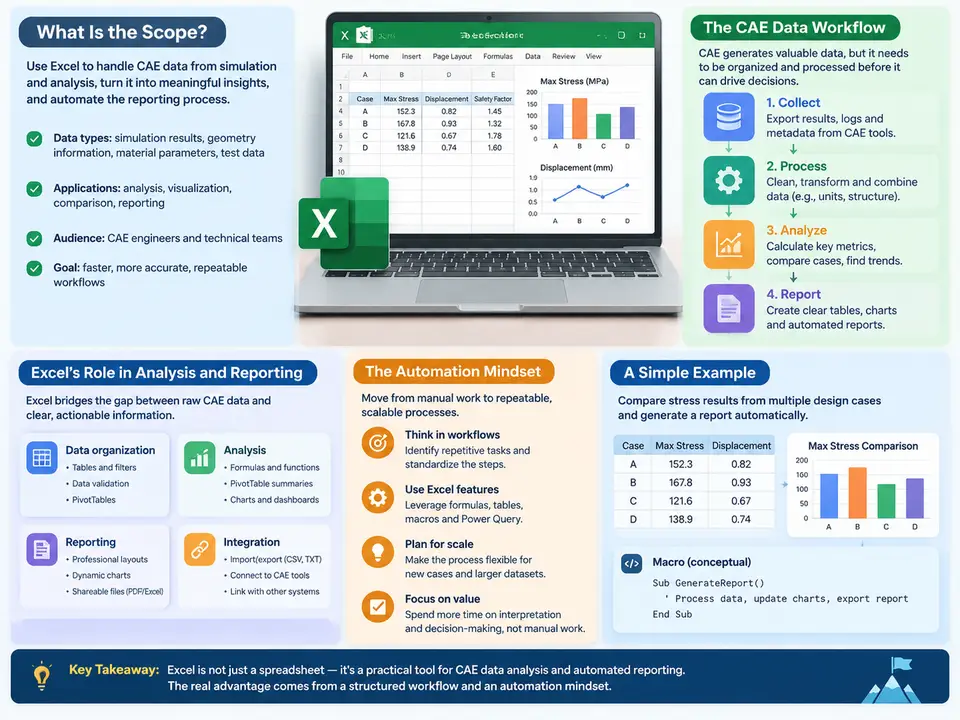
Computer-aided engineering (CAE) produces a peculiar kind of data: it is voluminous, hierarchical, and semantically rich, yet it is almost always delivered in formats that resist quick human interpretation. A single transient structural run may emit hundreds of result files; a parametric DOE sweep may generate thousands of load cases across dozens of design variants. The engineer's real bottleneck is rarely the solver — it is the gap between raw simulation output and a defensible engineering decision. This course is about closing that gap with Excel, not as a replacement for CAE post-processors, but as the connective tissue that turns solver output into traceable, repeatable, and auditable analysis and reporting.
What This Course Covers — and What It Does Not
The scope is deliberately narrow and practical. We treat Excel as an analysis and reporting layer sitting downstream of the solver and upstream of the decision-maker. Across 30 chapters you will work through four interlocking capabilities:
- Data ingestion and normalization — importing CSV, tab-delimited, and fixed-width solver exports; parsing result headers; handling units and coordinate conventions consistently.
- Analysis in the spreadsheet — lookup-driven result extraction, margin and safety-factor calculation, statistical reduction across load cases, and sensitivity tables.
- Automated reporting — template-driven report generation, chart refresh, and export to PDF/PPTX through VBA or Power Query pipelines.
- Repeatability engineering — versioning workbooks, separating data from logic, and building checks that fail loudly when inputs are wrong.
What the course does not do: it does not teach FEA theory, mesh quality, or solver selection. It assumes you already know what a von Mises stress contour means. The value here is in the plumbing — making sure the right number reaches the right cell with the right unit and the right provenance.
The CAE Data Workflow, End to End
Before automating anything, you need a clear mental model of where data is born and where it dies. A typical structural or thermal workflow looks like this: pre-processing (geometry, mesh, boundary conditions) → solver execution → raw result files → post-processing extraction → reduction and comparison → report. Excel's natural territory is the last three stages, but it can also serve as the input side — parameter tables that drive DOE runs and batch scripts.
The diagram below maps this flow and marks the handoff points where Excel typically enters. Note that the two most error-prone transitions are the solver-to-extraction handoff (unit and coordinate ambiguity) and the reduction-to-report handoff (manual copy-paste, stale links).
Why Excel, and Where Its Limits Lie
Excel earns its place for three reasons. First, ubiquity: every stakeholder can open a workbook, and no license negotiation stands between an engineer and a reviewer. Second, transparency: a formula in a cell is inspectable in a way that a compiled post-processor script is not, which matters enormously for design reviews and audits. Third, automation surface: Power Query, structured tables, and VBA give you a genuine ETL and templating engine without leaving the tool.
The limits are equally real. Excel is not a database; it degrades past roughly a million rows and becomes sluggish well before that. It has no native type system, so a stress value and a displacement can sit in adjacent cells with no guardrail. Floating-point display rounding can silently mask a margin that is actually negative. And workbook logic is fragile: a single inserted row can break a hard-coded range reference. Every automation pattern in this course is designed with these failure modes in mind — which is precisely why the mindset matters as much as the mechanics.
The Automation Mindset
Automation in this context does not mean "write a macro for everything." It means designing your workbook so that a fresh solver run flows through with minimal human touch and maximal traceability. Four principles carry through the entire course:
- Separate data from logic. Raw imported results live in their own sheet or table, untouched by formulas. Calculations reference that table by name, never by hard-coded cell address. When the next run arrives, you replace the data table and everything downstream recalculates.
- Make units explicit. Every numeric column header carries its unit —
Stress_vm_MPa,Disp_z_mm. Conversion factors live in a single named parameter block, not scattered through formulas. If the solver exports in Pa and your report expects MPa, the conversion happens once, visibly. - Fail loudly. A workbook that silently produces a plausible-but-wrong number is worse than one that errors. Use validation cells that check row counts, unit tags, and expected ranges, and surface a red status flag when an assumption breaks.
- Version the logic, not just the file. Keep a changelog sheet recording what changed, when, and why. Name workbook versions by logic revision, not by date alone.
A Concrete First Example: From Solver Export to Margin Table
To make the mindset tangible, consider a minimal but realistic case. A linear static run exports a CSV with one row per load case and columns for load case ID, max von Mises stress, and max displacement. Your task is to compute a margin against a yield allowable of 235 MPa (structural steel, example value) and flag any case below a margin of 1.5.
The non-automated approach — open CSV, copy columns, type a formula, drag down, eyeball the result — works once and fails on the second run. The automated approach structures it as follows. Import the CSV through Data → From Text/CSV into a table named tblResults. Create a parameter block on a separate sheet with named cells Allowable_MPa = 235 and MarginTarget = 1.5. Then add calculated columns to the table:
=IFERROR([@Stress_vm_MPa] / Allowable_MPa, "")
=IF([@Margin] >= MarginTarget, "PASS", "REVIEW")
Because these are structured table formulas, they propagate automatically when the next export is dropped in and the query is refreshed. The status column becomes the single place a reviewer looks. Add a summary cell above the table — =COUNTIF(tblResults[Status],"REVIEW") — and you have a one-glance gate: zero means proceed, anything else means investigate before the report is issued.
This tiny example already contains all four principles: data separated from logic, units in the header, a loud status flag, and logic that survives a data refresh. Every later chapter scales this pattern — more load cases, more result types, more elaborate reports — but the skeleton does not change.
How to Work Through This Course
The chapters are sequenced so that each builds on a working artifact from the previous one. You will get the most value by keeping a single practice workbook open and extending it as you go, rather than reading passively. Where a chapter introduces a technique, try it against a small synthetic dataset first — a dozen rows is enough to expose a broken lookup — before pointing it at a real solver export. Treat every formula, query, and macro in these pages as a template to be adapted to your own solver's output conventions, not as a fixed recipe. The goal by the end is not familiarity with Excel features, but a reporting pipeline you trust enough to run unattended.