1. Build a Crash Injury Severity Scorecard
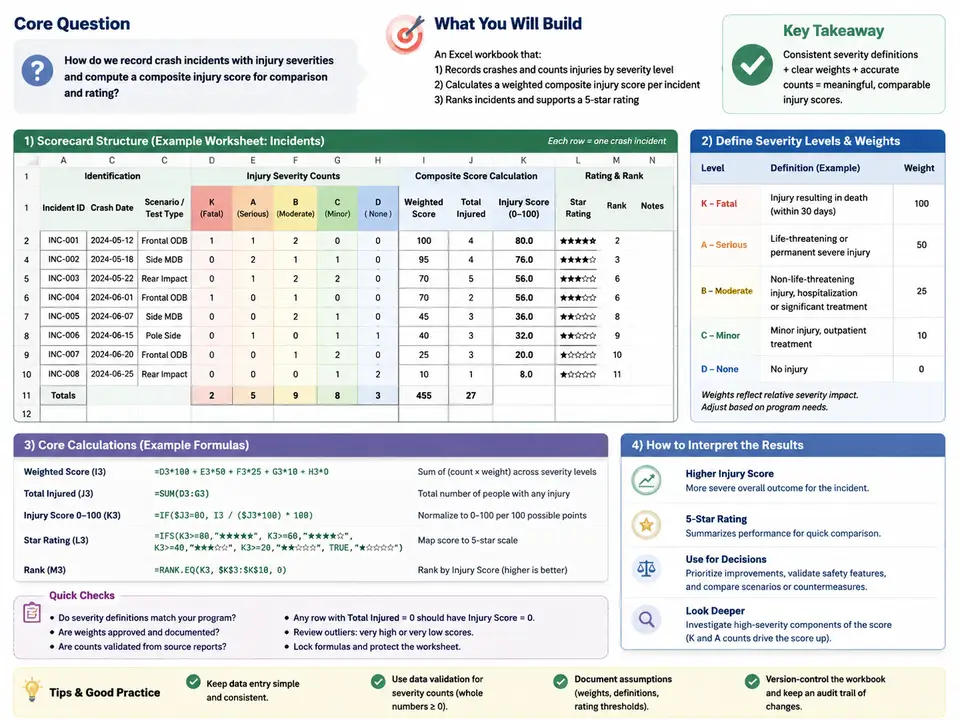
Workbook Structure and Scoring Model
This first case builds the data foundation for the entire scorecard series: a single Excel workbook that stores crash incidents, records injury counts by severity level, and computes a weighted composite injury score for each incident. The design goal is to keep raw inputs and derived calculations cleanly separated so that later cases (star rating, data validation) can be layered on without reworking the data model.
The scoring model uses four injury severity levels, each with a configurable weight. The composite score for an incident is the sum of count × weight across all severity levels. A common weighting scheme (aligned with abbreviated injury scale logic) is:
| Severity Level | Code | Weight | Rationale |
|---|---|---|---|
| Minor | MIN | 1 | Baseline; no lost work time |
| Moderate | MOD | 3 | Medical treatment required |
| Severe | SEV | 7 | Hospitalization or long recovery |
| Fatal | FAT | 15 | Highest weight; dominates score |
These weights are stored in a dedicated parameter block on a separate sheet (Parameters) rather than hard-coded into formulas. This is the key structural decision: when the weighting policy changes, only the parameter cells are edited, and every incident score recalculates automatically.
Sheet Layout
Create three sheets in a new workbook:
Parameters— severity codes, labels, and weights in a small lookup table.Incidents— one row per crash incident with raw counts and the computed composite score.Summary— aggregate counts and score statistics (optional but useful for verification).
On Parameters, enter the following in cells A1:D5:
A1: Code   B1: Label     C1: Weight   D1: Notes
A2: MIN    B2: Minor     C2: 1        D2: No lost work time
A3: MOD    B3: Moderate  C3: 3        D3: Medical treatment
A4: SEV    B4: Severe    C4: 7        D4: Hospitalization
A5: FAT    B5: Fatal     C5: 15       D5: Fatality
Name the weight range C2:C5 as SevWeights and the code range A2:A5 as SevCodes using the Name Box (type the name, press Enter). Named ranges make the incident formulas readable and portable.
Incident Table Columns
On Incidents, build the header row in A1:L1:
| Column | Header | Type | Example |
|---|---|---|---|
| A | IncidentID | Text | CR-2024-001 |
| B | Date | Date | 2024-03-14 |
| C | Location | Text | Intersection 5th & Main |
| D | VehicleType | Text | Sedan |
| E | MinorCount | Integer | 2 |
| F | ModerateCount | Integer | 1 |
| G | SevereCount | Integer | 0 |
| H | FatalCount | Integer | 0 |
| I | CompositeScore | Formula | 5 |
| J | TotalInjured | Formula | 3 |
| K | ScorePerInjured | Formula | 1.67 |
| L | Notes | Text | Rear-end collision |
Columns E–H are the raw inputs. Columns I–K are derived and must never be typed manually — that separation is what keeps the workbook auditable.
Composite Score Formula
In cell I2, enter the weighted-sum formula using the named weight range:
=E2*INDEX(SevWeights,1) + F2*INDEX(SevWeights,2) + G2*INDEX(SevWeights,3) + H2*INDEX(SevWeights,4)Alternatively, if the weights sit in a fixed order, a direct reference is clearer:
=E2*Parameters!$C$2 + F2*Parameters!$C$3 + G2*Parameters!$C$4 + H2*Parameters!$C$5Both forms are equivalent; the INDEX version survives row insertions in the parameter table, while the direct-reference version is easier to read during review. Pick one and apply it consistently down the column.
For the derived helper columns:
J2 (TotalInjured):   =SUM(E2:H2)
K2 (ScorePerInjured): =IF(J2=0, 0, I2/J2)
The IF guard in K2 prevents a divide-by-zero error on incidents with no recorded injuries. Fill I2:K2 down to row 31 to accommodate 30 incidents.
How the Score Flows Through the Workbook
The diagram below shows the data dependency chain: raw severity counts feed the weighted sum, which produces the composite score; the parameter table supplies the weights; and the derived columns branch off the score for per-incident normalization.
Populating and Verifying the Model
Enter three sample incidents to confirm the formulas behave correctly before scaling to 30 rows:
| IncidentID | Minor | Moderate | Severe | Fatal | Expected Score | Expected Total |
|---|---|---|---|---|---|---|
| CR-2024-001 | 2 | 1 | 0 | 0 | 2·1+1·3 = 5 | 3 |
| CR-2024-002 | 0 | 0 | 1 | 0 | 1·7 = 7 | 1 |
| CR-2024-003 | 1 | 0 | 0 | 1 | 1·1+1·15 = 16 | 2 |
After entering the counts, verify that column I matches the expected scores exactly. If a score is off, check in this order: (1) the named range SevWeights points to Parameters!C2:C5; (2) the formula references the correct count columns E–H; (3) no count cell contains text instead of a number (a text "0" will silently break the multiplication).
To confirm the parameter linkage works, temporarily change the FAT weight on Parameters from 15 to 20. Incident CR-2024-003 should immediately recalculate from 16 to 21. Revert the weight to 15 afterward. This round-trip test proves the score is genuinely driven by the parameter table rather than hard-coded values — a property the star-rating case will depend on.
Ctrl+` (grave accent) to toggle formula display in Excel. This lets you visually confirm that every cell in columns I–K contains a formula and no derived value was pasted as a constant.Common Failure Symptoms
- #VALUE! in column I — a count cell holds text or a stray space. Select E2:H31 and check for left-aligned numbers.
- #DIV/0! in column K — the
IF(J2=0,0,...)guard is missing or was overwritten. - All scores identical — the formula was entered without relative references, so every row points at row 2. Re-enter in I2 and fill down.
- Score does not change when weights change — weights were typed directly into the formula instead of referencing
Parameters.
With the table populated to 30 rows and the round-trip weight test passing, the workbook is ready to serve as the input layer for the star-rating formula in the next case.