1. Engineering data analysis workflow in Ex
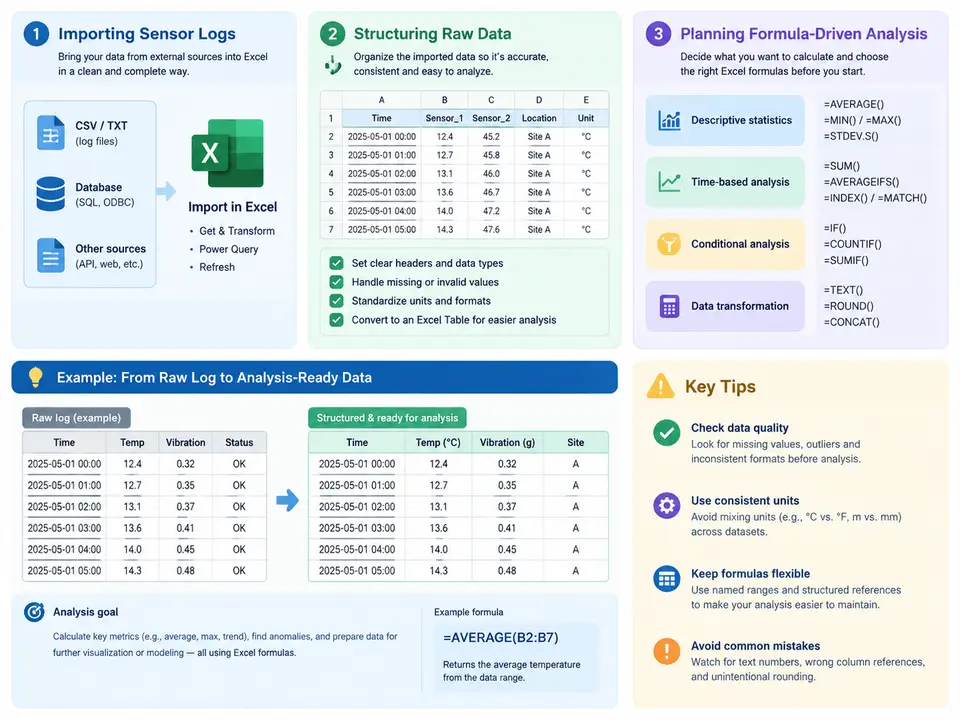
Engineering data analysis in Excel is rarely limited by the sophistication of individual functions. More often, it fails because the data never reaches the formulas in a trustworthy, well-structured form. A sensor log exported from a data acquisition system arrives as a flat text file with timestamps, channel identifiers, and raw ADC counts interleaved in ways that no lookup function can navigate reliably. Before a single INDEX/MATCH or dynamic array formula is written, the analyst must impose order: import the log without corrupting its values, reshape it into a normalized table, and decide in advance which quantities are measured, which are derived, and which are calculated on demand. This chapter establishes that workflow as a repeatable discipline rather than an ad-hoc sequence of copy-paste operations.
From Sensor Log to Structured Table
Consider a representative case: a vibration monitoring campaign on a pump skid, where a DAQ system writes one row per sample with a timestamp, a channel tag, and a raw value. A typical export looks like this:
timestamp,channel,raw_value,unit
2024-03-11T08:00:00.000Z,ACC-01,1.024,V
2024-03-11T08:00:00.000Z,ACC-02,0.998,V
2024-03-11T08:00:00.500Z,ACC-01,1.031,V
2024-03-11T08:00:00.500Z,ACC-02,1.002,V
2024-03-11T08:00:01.000Z,ACC-01,1.019,V
...
The first decision is the import path. For CSV and delimited text, Data > Get Data > From Text/CSV (Power Query) is preferable to double-clicking the file, because it preserves the import as a refreshable query and lets you set column types explicitly. Two settings matter most for sensor data. First, force the timestamp column to Date/Time rather than letting Excel infer it; ISO 8601 strings with a trailing Z are otherwise at risk of being read as text or shifted by the local time zone. Second, set raw_value to Decimal Number and confirm the locale's decimal separator matches the file — a European-locale machine reading a dot-decimal file will silently produce text or truncated integers.
If the log is genuinely large (hundreds of thousands of rows), load it to the Data Model rather than a worksheet. The Data Model compresses repeated channel tags and timestamps efficiently and keeps the workbook responsive, at the cost of requiring DAX or PivotTable-based aggregation instead of direct cell references. For logs under roughly 100,000 rows, a plain worksheet table is simpler and fully formula-addressable.
Normalizing the Raw Data
The long-format export above is convenient for storage but hostile to formula-driven analysis, because each physical quantity is scattered across interleaved rows. The standard remedy is to pivot the channel dimension into columns, producing one row per timestamp with one column per sensor:
| timestamp | ACC-01 (V) | ACC-02 (V) | sample_interval (s) |
|---|---|---|---|
| 2024-03-11 08:00:00.000 | 1.024 | 0.998 | — |
| 2024-03-11 08:00:00.500 | 1.031 | 1.002 | 0.500 |
| 2024-03-11 08:00:01.000 | 1.019 | 1.005 | 0.500 |
This pivot is best done in Power Query with Transform > Pivot Column, using channel as the pivot key and raw_value as the value column. The result is a clean, rectangular table — the only shape in which Excel's lookup, aggregation, and dynamic array functions behave predictably. Convert the loaded range to an official Excel Table (Ctrl+T) and give it a meaningful name such as tblVibration. Structured references then make formulas self-documenting: tblVibration[ACC-01 (V)] is unambiguous and expands automatically as new rows are appended.
Two structural rules prevent most downstream errors. Keep one header row with no merged cells and no blank columns; merged headers break structured references and PivotTables. Keep one data type per column; a column that mixes numbers and the text "NaN" or "---" will force every dependent formula into error handling. If the DAQ writes placeholder strings for missing samples, replace them with genuine blanks during import so that ISBLANK and COUNT behave correctly.
Separating Measured, Derived, and On-Demand Quantities
Before writing formulas, classify every column by its role. Measured columns are imported verbatim and never edited — the raw voltage, the timestamp, the channel tag. Derived columns are computed once per row from measured values and stored, such as converting raw voltage to engineering units using the sensor's calibration factor. On-demand quantities are computed only when a specific question is asked — a spectral peak, a rolling RMS over a defined window, a statistical summary for a report — and should live in a separate summary area rather than bloating the data table.
This classification has a concrete payoff. Suppose ACC-01 has a sensitivity of 100 mV/g, so acceleration in g is raw_value / 0.100. That conversion is a derived column, added once:
= [@[ACC-01 (V)]] / 0.1Inside a Table, the [@...] syntax refers to the current row, so the formula fills the entire column automatically and extends when new rows arrive. The calibration factor 0.1 should not be hard-coded in the formula; place it in a named parameter cell, say Sensitivity_ACC01, and reference it as [@[ACC-01 (V)]] / Sensitivity_ACC01. When the sensor is recalibrated, one cell changes and every derived value updates — a small habit that separates maintainable engineering workbooks from fragile ones.
Planning the Formula Layer
With a normalized table in place, the analysis plan can be laid out explicitly. For the vibration case, a defensible plan might include: a time-domain summary (mean, standard deviation, peak, crest factor per channel); a rolling RMS with a 1-second window to track amplitude drift; a check for dropped samples using the sample_interval column; and a frequency-domain view built from the raw samples. Each of these maps to a specific formula family — AVERAGE/STDEV.S/MAX for summaries, SQRT(SUMPRODUCT(...)/n) or dynamic-array rolling windows for RMS, COUNTIF on interval deviations for gap detection, and the FREQUENCY or FFT-adjacent techniques covered later for spectral work.
The planning step is where most wasted effort is avoided. Writing formulas before deciding what question each answers produces sprawling, undocumented sheets. A short written plan — quantity, formula approach, expected output location, and acceptance criterion — keeps the workbook auditable and makes it possible for a colleague to verify the analysis without reverse-engineering every cell.
Verifying the Structure Before Analysis
A short verification pass catches structural defects while they are still cheap to fix. Check that the row count in the loaded table matches the expected sample count (duration divided by sample interval, plus one). Confirm that the timestamp column is genuinely numeric by testing =ISNUMBER([@timestamp]) on a sample row — a FALSE result means the import left it as text and every time-based calculation will fail. Verify that no channel column contains text by checking =COUNT(tblVibration[ACC-01 (V)]) against the table's row count; a mismatch indicates stray strings. Finally, inspect the sample_interval column for values other than the nominal 0.500 s, which reveal dropped or duplicated samples that would distort any RMS or spectral result computed downstream.
These checks are not ceremony. In practice, a single text-formatted timestamp or a handful of "NaN" placeholders is enough to make an otherwise correct formula return #VALUE! or, worse, a plausible but wrong number. Establishing the import, normalization, classification, and verification sequence as a fixed habit means that when the analysis formulas are finally written, any error they produce points to the analysis logic rather than to the data underneath it.