3. LuCI界面定制与汉化
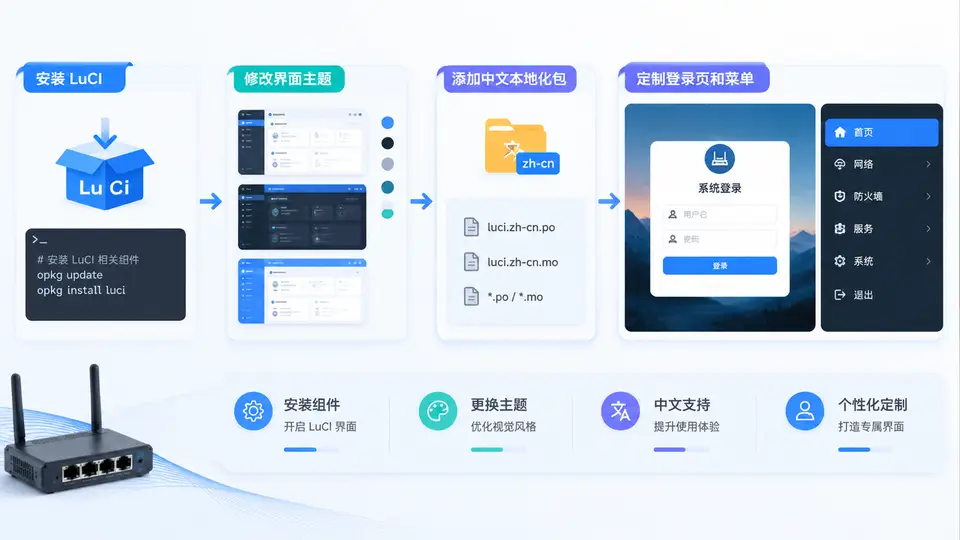
任务说明
本案例目标是在OpenWrt网关设备上完成LuCI界面的安装、主题更换、中文本地化、登录页定制与菜单调整。最终交付一个可访问的、中文显示的、带自定义品牌标识的LuCI管理界面。
1. 安装LuCI与中文语言包
通过SSH登录OpenWrt设备,依次执行以下命令完成LuCI核心及中文本地化组件的安装:
opkg update
opkg install luci luci-base luci-mod-admin-full luci-theme-bootstrap luci-i18n-base-zh-cn luci-i18n-admin-zh-cn
安装完成后,启动uhttpd服务并设置开机自启:
/etc/init.d/uhttpd enable
/etc/init.d/uhttpd start
2. 切换中文语言与主题
浏览器访问 http://<设备IP>/cgi-bin/luci,使用root账号登录。在系统 → 语言与界面中:
- 将语言设置为
zh-cn,保存并应用,界面即切换为中文; - 将主题设置为
bootstrap(默认)或后续自定义主题。
3. 定制登录页品牌信息
LuCI的登录页标题与欢迎语由/etc/config/luci及uhttpd模板控制。创建自定义品牌配置文件:
cat > /etc/config/luci_custom <<EOF
config core 'main'
    option lang 'zh-cn'
    option mediaurlbase '/luci-static/bootstrap'
    option resourcebase '/luci-static/resources'

config branding 'brand'
    option title 'MyIoT网关管理平台'
    option description '智能家居物联网网关'
    option login_title '欢迎登录MyIoT网关'
EOF修改uhttpd的登录页模板,添加品牌标识。编辑/www/luci-static/resources/view/admin/index.js,在renderLogin函数中替换标题部分:
// 找到 renderLogin 函数中的标题渲染行,替换为:
var brand = document.createElement('h1');
brand.className = 'login-title';
brand.textContent = 'MyIoT网关管理平台';
brand.style.color = '#00a0e9';
brand.style.textAlign = 'center';
// 将 brand 节点插入到登录表单之前
4. 定制菜单结构
LuCI菜单通过JSON配置文件定义。创建自定义菜单入口文件/usr/share/luci/menu.d/luci_custom.json:
{
    "admin/custom": {
        "title": "网关状态",
        "order": 1,
        "action": {
            "type": "view",
            "path": "admin/custom/status"
        },
        "depends": {
            "acl": ["luci-mod-admin"]
        }
    },
    "admin/custom/status": {
        "title": "实时监控",
        "order": 10,
        "action": {
            "type": "template",
            "path": "admin_custom/status"
        }
    }
}创建对应的视图模板文件/usr/share/luci/menu.d/../view/admin_custom/status.htm:
<%+header%>
<h3>网关实时状态</h3>
<div class="cbi-map">
    <iframe src="/cgi-bin/luci/admin/status" style="width:100%;height:600px;border:none;"></iframe>
</div>
<%+footer%>
重启LuCI使菜单生效:
/etc/init.d/uhttpd restart
rm -f /tmp/luci-indexcache* /tmp/luci-modulecache*
5. 验证方法与判定标准
完成以上配置后,按以下步骤验证:
- 界面语言验证:浏览器访问LuCI,确认所有菜单、按钮、提示均为简体中文;
- 登录页验证:退出登录,确认登录页显示“MyIoT网关管理平台”标题及“欢迎登录MyIoT网关”提示,品牌色为蓝色;
- 菜单验证:登录后左侧菜单出现“网关状态”项,点击后展开“实时监控”子菜单,页面内嵌系统状态监控视图;
- 主题验证:界面整体使用bootstrap主题,布局无错乱,CSS资源正常加载。
判定标准:以上4项全部满足,且无JavaScript控制台报错,即视为案例通过。
注意:若设备Flash空间有限,可仅安装
luci-mod-admin-full与luci-i18n-base-zh-cn,省略部分非核心模块。菜单定制需确保JSON语法正确,否则LuCI将无法加载菜单,此时可通过rm -f /tmp/luci-indexcache*清除缓存后重试。