3. 布局管理器入门
任务目标
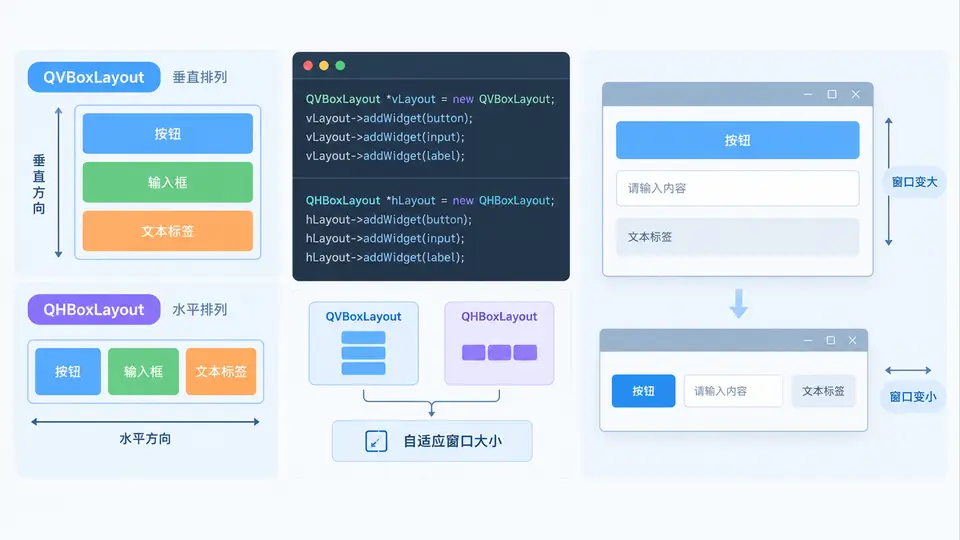
使用 QVBoxLayout 和 QHBoxLayout 组合排列多个控件,创建一个随窗口缩放而自动调整控件位置与大小的对话框界面。
核心实现
以下代码创建一个 QDialog,包含:顶部水平排列的输入框与按钮、中部垂直排列的标签与文本编辑区、底部水平排列的确认与取消按钮。所有控件由布局管理器接管,无需手动计算坐标。
```cpp
#include
#include
#include
#include
#include
#include
#include
#include
int main(int argc, char *argv[])
{
QApplication app(argc, argv);
QDialog dlg;
dlg.setWindowTitle("布局管理器入门");
// 顶部行:标签 + 输入框 + 搜索按钮
QLabel *nameLabel = new QLabel("名称:");
QLineEdit *nameEdit = new QLineEdit;
nameEdit->setPlaceholderText("请输入名称");
QPushButton *searchBtn = new QPushButton("搜索");
QHBoxLayout *topLayout = new QHBoxLayout;
topLayout->addWidget(nameLabel);
topLayout->addWidget(nameEdit, 1); // 输入框拉伸因子为1
topLayout->addWidget(searchBtn);
// 中部:描述标签 + 多行文本编辑区
QLabel *descLabel = new QLabel("描述:");
QTextEdit *descEdit = new QTextEdit;
QVBoxLayout *midLayout = new QVBoxLayout;
midLayout->addWidget(descLabel);
midLayout->addWidget(descEdit, 1); // 文本编辑区拉伸因子为1
// 底部:确认 + 取消
QPushButton *okBtn = new QPushButton("确定");
QPushButton *cancelBtn = new QPushButton("取消");
QHBoxLayout *bottomLayout = new QHBoxLayout;
bottomLayout->addStretch(1); // 左侧弹簧,将按钮推向右侧
bottomLayout->addWidget(okBtn);
bottomLayout->addWidget(cancelBtn);
// 总布局:垂直排列三行
QVBoxLayout *mainLayout = new QVBoxLayout(&dlg);
mainLayout->addLayout(topLayout);
mainLayout->addLayout(midLayout, 1); // 中部区域占据多余空间
mainLayout->addLayout(bottomLayout);
dlg.resize(400, 300);
dlg.show();
return app.exec();
}
```
运行与验证
- 将上述代码保存为
main.cpp,在 .pro 文件中添加 QT += widgets。
- 编译运行:
qmake && make(或使用 Qt Creator 直接打开构建)。
- 验证步骤:
- 窗口初始显示时,三行控件垂直排列,底部按钮右对齐。
- 用鼠标拖拽拉伸窗口宽度——输入框宽度随之变化,按钮与标签相对位置不变。
- 拖拽窗口高度——中部文本编辑区高度优先伸缩,顶部与底部区域高度保持不变。
- 点击“搜索”“确定”“取消”按钮无响应属正常现象,本案例仅演示布局效果。
通过条件:窗口任意缩放过程中,无控件重叠、无空白异常扩大,各控件间距均匀且始终完整可见。
布局结构说明:外层 QVBoxLayout 依次装入三个子布局;中部子布局设置拉伸因子为 1,使窗口高度变化时文本编辑区优先伸缩;顶部输入框设置拉伸因子为 1,使窗口宽度变化时输入框吸收多余空间。底部按钮前的 addStretch() 将按钮组固定在右侧。