1. 创建首个Wear OS应用模块
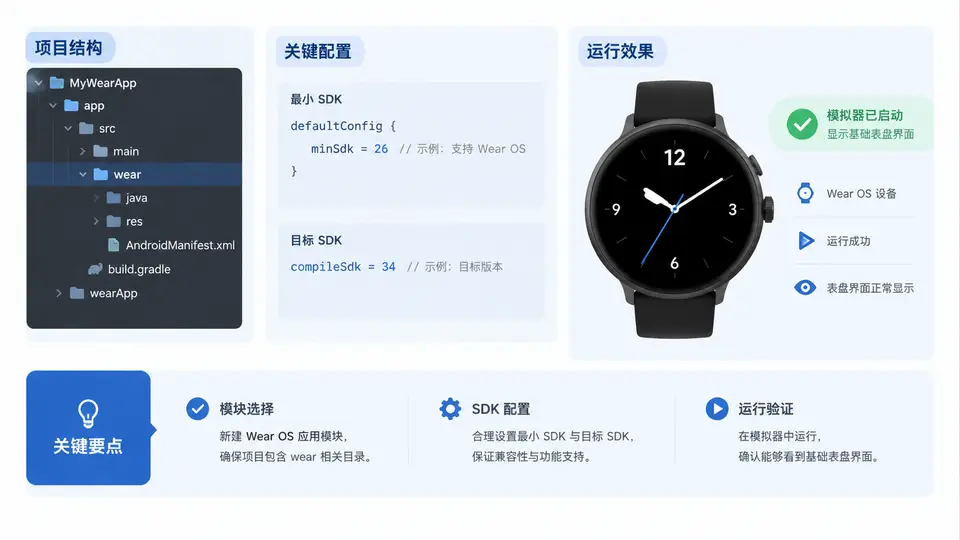
从零创建一个可运行的 Wear OS 模块
本案例在 Android Studio 中新建一个 Wear OS 应用模块,配置 minSdk 与 targetSdk,并让它在一个基础表盘界面上成功启动。Wear OS 模块与手机模块最大的区别在于:它使用 com.android.application 插件、依赖 androidx.wear 库,并且清单中声明 android.hardware.type.watch 特性。下面先看清模块的构成与构建链路,再动手创建。
创建模块与配置 SDK
在 Android Studio 中通过 File → New → New Project 选择 Wear OS 模板,或在一个已有工程中通过 File → New → New Module 添加 Wear OS 模块。模板会自动生成 build.gradle.kts、AndroidManifest.xml 和 MainActivity.kt。创建后重点检查以下配置:
// wearapp/build.gradle.kts
plugins {
    id("com.android.application")
    id("org.jetbrains.kotlin.android")
}

android {
    namespace = "com.example.wearapp"
    compileSdk = 34

    defaultConfig {
        applicationId = "com.example.wearapp"
        minSdk = 30          // Wear OS 3 及以上
        targetSdk = 34
        versionCode = 1
        versionName = "1.0"
    }

    buildFeatures {
        compose = true
    }
}

dependencies {
    implementation("androidx.wear:wear:1.3.0")
    implementation("androidx.compose.material:material:1.6.0")
    implementation("androidx.activity:activity-compose:1.8.2")
}
Wear OS 3 对应 API 30,Wear OS 4 对应 API 33/34。如果模拟器镜像低于
minSdk,安装会直接失败并提示 INSTALL_FAILED_OLDER_SDK。建议 minSdk 设为 30,targetSdk 与 compileSdk 保持一致。清单声明与入口 Activity
Wear OS 模块的清单必须声明手表硬件特性,否则应用可能被安装到手机设备上:
<manifest xmlns:android="http://schemas.android.com/apk/res/android">
    <uses-feature
        android:name="android.hardware.type.watch"
        android:required="true" />

    <application
        android:label="@string/app_name"
        android:theme="@android:style/Theme.DeviceDefault">
        <activity
            android:name=".MainActivity"
            android:exported="true">
            <intent-filter>
                <action android:name="android.intent.action.MAIN" />
                <category android:name="android.intent.category.LAUNCHER" />
            </intent-filter>
        </activity>
    </application>
</manifest>
入口 Activity 使用 Compose 编写一个最简表盘界面,居中显示一行文字即可验证模块是否跑通:
// MainActivity.kt
package com.example.wearapp

import android.os.Bundle
import androidx.activity.ComponentActivity
import androidx.activity.compose.setContent
import androidx.compose.foundation.layout.Box
import androidx.compose.foundation.layout.fillMaxSize
import androidx.compose.material.Text
import androidx.compose.runtime.Composable
import androidx.compose.ui.Alignment
import androidx.compose.ui.Modifier
import androidx.compose.ui.graphics.Color
import androidx.compose.ui.text.style.TextAlign
import androidx.compose.ui.unit.sp

class MainActivity : ComponentActivity() {
    override fun onCreate(savedInstanceState: Bundle?) {
        super.onCreate(savedInstanceState)
        setContent {
            WatchFace()
        }
    }
}

@Composable
fun WatchFace() {
    Box(
        modifier = Modifier.fillMaxSize(),
        contentAlignment = Alignment.Center
    ) {
        Text(
            text = "Hello Wear OS",
            color = Color(0xFF2E9E6B),
            fontSize = 22.sp,
            textAlign = TextAlign.Center
        )
    }
}
运行到模拟器
- 在 Android Studio 的 Device Manager 中创建一个 Wear OS 模拟器,选择 Wear OS Small Round 或 Wear OS Large Round 设备定义,系统镜像选择 API 30 及以上。
- 启动模拟器,等待手表桌面完全加载。
- 在工具栏的运行配置中选择
wearapp模块,目标设备选择刚启动的 Wear OS 模拟器,点击 Run。 - 观察 Build 窗口:Gradle Sync 通过后执行
assembleDebug与installDebug,最后自动启动MainActivity。
如果运行按钮旁没有出现 Wear OS 模拟器,先确认模拟器已完全启动(手表桌面可见),再检查运行配置的 Deploy 目标是否选择了该设备。若安装报
INSTALL_FAILED_OLDER_SDK,说明模拟器 API 低于模块的 minSdk,需要换用更高版本镜像或降低 minSdk。验证与常见问题
| 现象 | 可能原因 | 处理方式 |
|---|---|---|
| Gradle Sync 失败,提示找不到 wear 依赖 | 仓库未配置或网络不可达 | 检查 settings.gradle.kts 中的 google() 与 mavenCentral() |
| 安装成功但桌面找不到应用 | 清单缺少 LAUNCHER intent-filter | 补上 MAIN / LAUNCHER 声明 |
| 启动后白屏或闪退 | 主题或 Compose 依赖缺失 | 确认 buildFeatures.compose = true 且依赖已同步 |
| 应用被安装到手机模拟器 | 未声明 watch 特性 | 添加 uses-feature android.hardware.type.watch |
完成标志:模拟器手表桌面上出现应用图标,点击后显示居中的 “Hello Wear OS” 文字,Logcat 中无
FATAL EXCEPTION。此时模块创建、SDK 配置与基础界面运行链路全部打通,可以进入下一例的模拟器与真机调试环节。